
📋 BLOG SUMMARY
Most Salesforce CTI setup projects don’t fail because the product doesn’t work. They fail because 3–4 critical configuration steps were skipped before agents picked up their first call. This Salesforce CTI setup checklist covers all 12, so your go-live doesn’t turn into a week of emergency fixes.
Week one is where Salesforce phone integration setups go wrong.
Not because the product broke. Not because the telephony vendor dropped the signal. Because nobody verified the configuration before agents dialed out for the first time.
Click-to-dial logs to the wrong object. Dispositions aren’t set up. Inbound calls ring nowhere. These aren’t unusual edge cases. They’re the most common reasons a CTI go-live turns into a two-week fire drill. This Salesforce CTI setup checklist covers the 12 configuration items that determine whether your CTI setup actually works on day one, and what breaks when each one gets skipped.
Is your CTI setup actually ready for day one?
Run through this checklist on your org before you tell the team to go live.
Get a Setup Review →Your Go-to Salesforce CTI Checkup Checklist
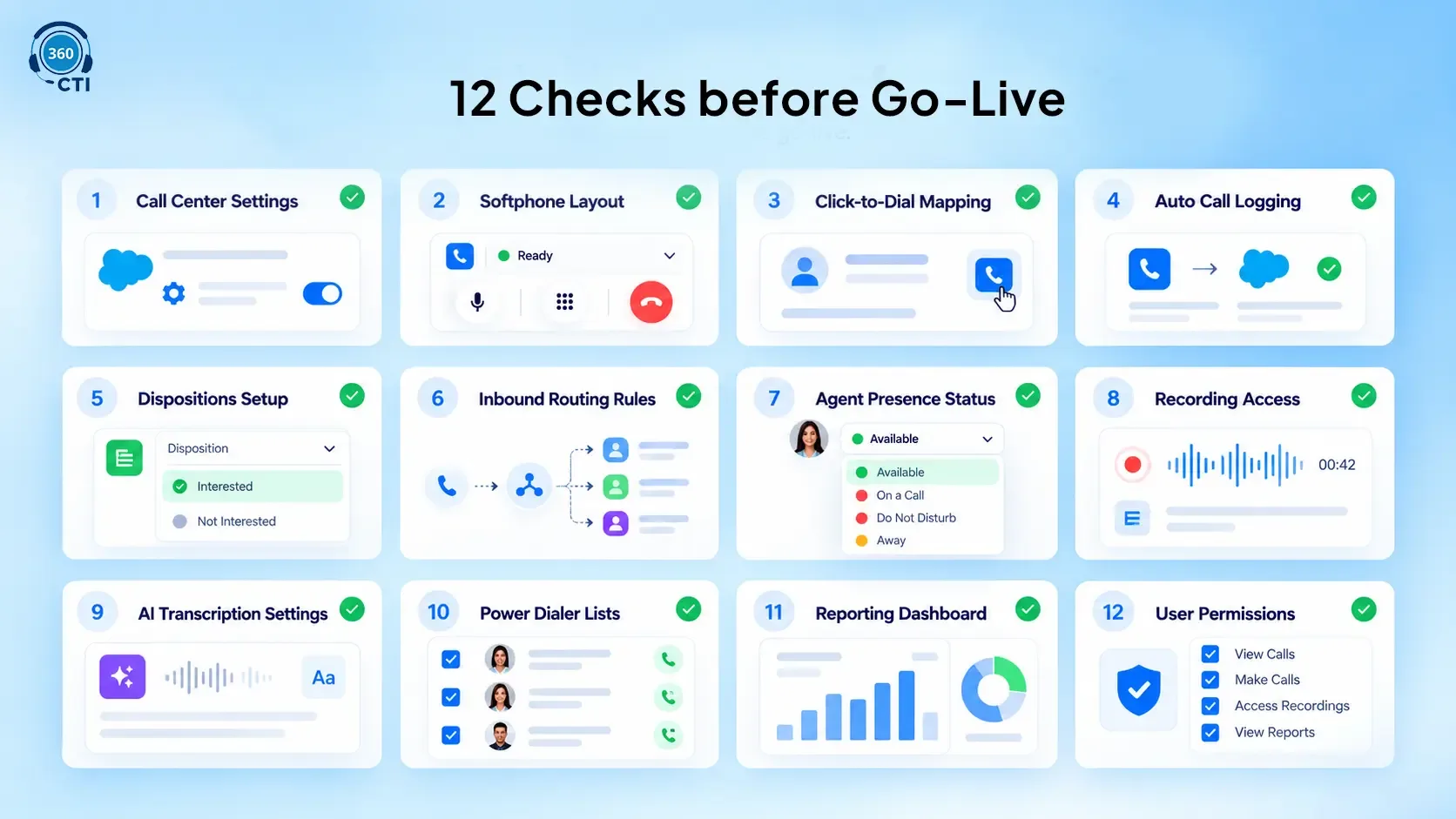
Before your team starts making calls, make sure every part of your Salesforce phone integration is configured correctly. These 12 checks cover everything from call routing and logging to agent permissions, helping you catch setup gaps before go-live.
1. Call Center Settings in Salesforce
Start here. The call center definition file is what tells Salesforce which CTI adapter to load for the phone panel. In Setup, you import the definition file (provided by your CTI vendor and documented in Salesforce’s Open CTI Developer Guide), assign users to the call center, and confirm the softphone utility item appears in all relevant Lightning apps.
What gets missed: teams assign only admins during testing, then forget to add the full agent list before launch. Every user who needs the phone panel must be individually assigned to the call center. Also confirm the CTI utility item is visible in Lightning App Builder for every app your agents work in: Sales Cloud, Service Console, or a custom app. If it’s missing, agents open Salesforce and see no phone panel at all. That’s the first support ticket of the day, and it’s entirely avoidable.
One more check while you’re here: see where your adapter stands on the Open CTI retirement in 2028 before you build your setup on top of it.
2. Softphone Layout and Object Mapping
The softphone layout controls what an agent sees during a live call: the screen pop, the fields displayed, the links to related records. Most orgs use the default layout and move on. That’s usually the wrong call.
For a sales team, the softphone should surface Lead name, company, pipeline stage, and last activity. For a support team, it should pull Case number, priority, and last contact date. Map the layout to the objects your agents actually use. Salesforce lets you assign different layouts per call type and object. Use that. If you handle leads differently than contacts, build separate layouts. Generic setups produce generic experiences, and agents learn to ignore a panel that doesn’t give them useful context fast.
3. Click-to-Dial Configuration
The next one in our Salesforce CTI setup checklist is Click-to-dial. It is one of the most-used features in any Salesforce CTI deployment. It’s also one of the most frequently misconfigured.
The feature needs to be enabled per object, and the phone field it dials from must match the field your data actually uses. If your leads store numbers in a custom field called “Mobile_Number__c” and you’ve mapped click-to-dial to the standard “Phone” field, agents click and get a blank dial attempt. Check the field mapping on Lead, Contact, Account, Opportunity, and Case before go-live. Also confirm click-to-dial is visible on both record detail pages and list views. Both need to be on. One without the other means partial functionality, and partial functionality always produces frustrated agents who work around the system instead of through it.
4. Automatic Call Logging Configuration
Every call should write a completed Activity to the related Salesforce record when it ends. If that’s not configured, pipeline visibility breaks on day one.
Agents don’t log calls manually. Not consistently. The next call comes in and the previous one goes unrecorded. So if logging isn’t automatic, call data lives only in the telephony system and never reaches Salesforce. In 360 CTI, automatic call logging writes a completed Task to the Lead, Contact, Opportunity, or Case tied to the call. Confirm the logging maps to the right object, includes call duration, outcome, and recording link, and is attributed to the individual agent (not a generic system user). That activity log is what managers use for coaching and what sales leaders use to understand pipeline coverage.
5. Disposition and Outcome Picklist Setup
Dispositions are what agents select after a call ends: “Reached,” “Voicemail,” “Not Interested,” “Needs Follow-up.” Without a configured picklist, agents either skip it entirely or type freehand notes that can’t be reported on.
Build the disposition list before go-live. Keep it short: 6 to 8 options is usually enough. More than 12 and agents stop using it consistently. Map each disposition to an outcome category so reports are clean and filterable. For high-volume teams running a Salesforce calling solution, dispositions also feed dialer logic. A “No Answer” disposition can trigger an automatic reschedule. A “Not Interested” can remove the record from the active campaign queue. That logic only works if dispositions are defined and correctly mapped before the first call goes out.
6. Inbound Routing Rules
Inbound routing is where most Salesforce CTI solution setups expose their gaps. If an inbound call hits the system with no routing logic defined, it rings everywhere at once or rings nowhere. Both outcomes are bad.
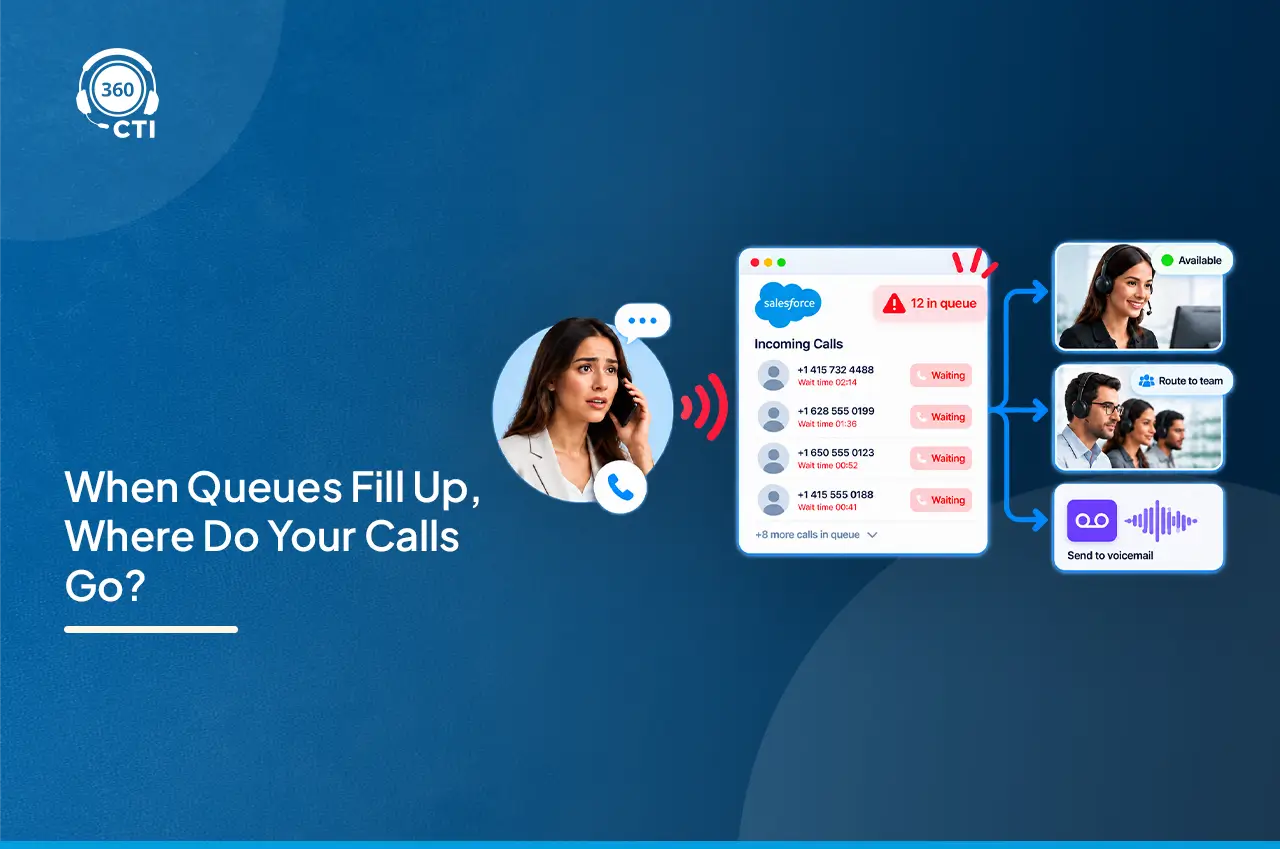
Define routing rules before go-live. Which queue handles which inbound number. Whether priority routing is active. What happens when all agents are unavailable: overflow, voicemail, or a backup queue. If your org has multiple departments, the routing rules need to reflect that structure, not just exist as a default catch-all. 360 CTI’s AI Call Routing handles skill-based routing and real-time queue management, but the underlying routing architecture still needs to be configured per your team’s actual structure. The AI makes routing smarter. It doesn’t replace the routing design.
Does your inbound routing actually send calls to the right agent?
Skill-based routing means the right rep picks up every time, not just whoever's free.
See AI Routing →7. Agent Availability and Presence Status
Presence status tells the system whether an agent is ready to take a call. Without it configured, the system can’t distribute inbound traffic intelligently.
In Salesforce Omni-Channel (which 360 CTI integrates with), you define presence statuses like “Available,” “On a Call,” “Break,” and “After Call Work.” Each maps to a capacity value. If agents don’t set their status before their shift, or if the default stays as “Offline,” inbound calls won’t reach them. Confirm that status options are configured, agents are trained on setting availability at shift start, and there’s ideally an automatic status change when a call is answered. Manual status management works fine in a test environment. In a real contact center, it fails by week two.
8. Call Recording Storage and Access
Recordings are only useful if your team can actually find and play them.
That sounds obvious. It’s also the thing most teams eave off their Salesforce CTI setup checklist after go-live. In 360 CTI, recordings link directly to the activity log on the Salesforce record. What to verify: where recordings are stored (Salesforce Files, external storage, or direct links), who has permission to play them, and whether the link appears on the activity log automatically. Also check your data retention policy before you have 90 days of calls sitting in a system nobody’s reviewed. Healthcare and finserv orgs have specific rules about how long recordings must be kept. Configure that now. 360 CTI’s AI Call Monitoring also lets supervisors flag, review, and annotate calls directly inside Salesforce, which is far faster than exporting files for separate review.
9. AI Transcription and Sentiment Settings
AI transcription isn’t a simple on/off toggle. There are real decisions to make before you enable it.
Which calls get transcribed? All of them, outbound only, or specific queues? For a high-volume sales team, transcribing everything can create noise. For a compliance-sensitive finserv or healthcare team, full transcription with keyword flagging is a requirement. In 360 CTI, transcriptions and sentiment scores write back to the Salesforce record in real time. Managers review them alongside the recording from the activity log. Check: is transcription enabled per agent profile or universally? Are sentiment alerts configured? And for any org handling regulated data, confirm explicitly what happens to transcript data when AI features are turned off. With 360 CTI, it stays inside Salesforce. Worth verifying directly rather than assuming.
📌 DID YOU KNOW
360 CTI supports transcription and sentiment analysis in 50+ languages. For regional sales teams across India, LATAM, and the Middle East where agents frequently switch languages mid-call, that language coverage matters far more than most vendors make clear during demos.
10. Power Dialer List Configuration
If your team runs outbound campaigns through a power dialer, the list setup is everything. A badly built list means agents burn through unqualified contacts, re-call people who already declined, and skip warm leads by accident.
Before go-live: define list logic (which records qualify, what filters apply), set a call cadence (how many attempts before a contact exits the queue), and confirm which disposition triggers which next action. 360 CTI’s Calling Solution includes list-based power dialing with automatic record progression built directly from your Salesforce data. Which means your data quality directly affects how well the dialer performs. Run a deduplication pass before loading the first campaign. A dialer running on clean data is a completely different experience than one running on messy CRM records.
11. Dashboard and Reporting Setup
You can’t manage what you can’t measure. And you can’t measure anything if the reports aren’t set up before the data starts flowing.
Build reports on call volume by agent, average handle time, calls by disposition, missed calls, and queue performance before go-live. In Salesforce, these pull from the Activity object and any custom objects your CTI tool writes to. 360 CTI’s Lead Agent Management dashboard gives managers a real-time view of agent activity, queues, and call outcomes. But the underlying reports still need to be confirmed as active before launch. Otherwise your first week of call data exists but can’t be read, and backfilling that context later is more work than anyone plans for.
12. User Permissions and Profile Access
This one gets skipped more than any other item on Salesforce CTI setup checklist. It also generates more post-launch support tickets than all the others combined.
Admins configure everything, test it, confirm it works, then go-live assuming all agents have the same access. They don’t. Standard profiles carry restricted field-level security, limited object access, and no visibility into settings that were wide open during admin testing. Before go-live: create a test user with a standard agent profile and walk through the complete call flow as that user. Can they see the softphone? Use click-to-dial? View recording links? Set presence status? Access the dashboard? Any “no” is a permission gap that surfaces as a support ticket on day one. Fix it in the sandbox. Not in production.
What Breaks When These Steps Get Skipped
The pattern is predictable. A team tests everything as an admin, confirms it all works, goes live, and spends two weeks fixing configuration gaps that a single pre-launch review would have caught.
| Skipped Step | What Actually Breaks |
|---|---|
| Call center setup | Agents see no phone panel on launch day |
| Softphone layout | Screen pop shows wrong record or no context |
| Click-to-dial field mapping | Agents click and get blank dial attempts |
| Auto call logging | Calls don’t appear in Salesforce records |
| Dispositions | Pipeline reports are unusable; dialer logic fails |
| Inbound routing | Calls drop or ring unassigned |
| Presence status | Inbound calls never reach available agents |
| Recording access | Managers can’t review or coach from calls |
| AI transcription scope | Compliance gaps or noisy unfiltered data |
| Dialer list logic | Agents re-call contacts who already declined |
| Reports not built | First week’s data exists but can’t be read |
| Profile permissions | Half the team can’t use the phone panel |
None of this is a product failure. It’s a configuration gap, and every single item is checkable before a single agent goes live.
Your Setup Checklist Is Only Useful If You Actually Run It
A Salesforce CTI setup isn’t live when the package is installed. It’s live when every item on this list is working for the actual agents using it, not just for the admin who configured it.
That distinction matters more than most rollout plans account for. If your team wants a second set of eyes before go-live, the 360 CTI team offers free 30-minute configuration reviews. One session. One clear list of what’s ready and what isn’t.