Guide
360 CTI User Guide (International)
The full 360 CTI user guide for international numbers: outbound and inbound calls, CTI Setup, Power Dial, IVR, call routing and AI features.
Read Guide →Everything agents and admins need to use 360 CTI in India: calling from Salesforce, routing, IVR, voicemail, recordings, AI transcripts and setup.
This guide explains how to use and set up the 360 CTI app for India. It covers everyday calling tasks for agents and the configuration steps that administrators need to follow. It has been fully revised to include every feature released in the August–September 2026 package updates.
| Reader | What to read |
|---|---|
| Agents (sales, support, collections) | Chapters 3–9: setting up your profile, making and receiving calls, transfers, dispositions, Power Dial and Calling Lists. |
| Administrators | Chapters 10–20: call routing, IVR, voicemail, recordings, AI transcripts, call monitoring, reporting and the CTI Setup reference. |
| CSM, Sales and Support teams | Chapter 2 (What's New), Chapter 21 (Troubleshooting) and Chapter 22 (Known Limitations). |
Each feature section starts with a short status line so you can see at a glance what changed and who it applies to:
NEW For: Admins Where: CTI Setup › General Settings
Colored boxes highlight information you should not miss:
Note: Extra detail that helps you understand how a feature behaves.
Tip: A recommended way to use a feature.
Important: Something that can affect your calls or data if it is missed.
The table below lists every new and updated feature covered in this edition. Use the section number to jump to the full explanation.
| Feature | What it means for you | See |
|---|---|---|
| Softphone and everyday calling | ||
| My CTI Setup tab (NEW) | One personal page where each user manages their mobile number, voice message, voicemail and ring preference. | 4 |
| Mobile number source (UPDATED) | Your calling agent is now created, updated or deleted from the mobile number in My CTI Setup, not the Salesforce User record. | 4, 2.1 |
| Minimize incoming call (NEW) | When a new call arrives while you are saving notes, you can minimize it, finish your notes, then accept or reject. | 6.2 |
| Group name on incoming call (NEW) | The incoming call pop-up can show which group or queue the call came from. | 6.3 |
| Mute incoming ring (NEW) | Turn off the softphone ring sound for incoming calls from My CTI Setup. | 6.4 |
| Status in the utility bar (NEW) | The utility bar now shows your current status, for example "360 CTI: Online". | 3.4 |
| Status on the call-ended screen (NEW) | Mark yourself Away or Offline right after a call ends, before the next call reaches you. | 5.3 |
| Click to Dial loading message (UPDATED) | A clear message shows while the softphone is loading; numbers become clickable once it is ready. | 5.1 |
| Auto-remove missed calls on callback (NEW) | Missed calls disappear from the softphone Home tab once a connected call is made with that number. | 6.6 |
| Voicemail Drop section (NEW) | Voicemails left by customers appear in their own section in the softphone. | 6.7 |
| Play Recording on cold transfer (NEW) | Transfer a caller to a recorded message (for example, a feedback survey) and capture the key they press. | 7.1 |
| Record-specific dispositions (NEW) | Show a different set of disposition values for individual records. | 8.2 |
| Lightning Web Security message (NEW) | Clear guidance appears if Lightning Web Security is turned off while managing dispositions. | 8.3 |
| Experience Cloud: Power Dial and Calling List (NEW) | Community users with a CTI number can run Power Dial and Calling Lists. | 9.3 |
| Incoming call routing | ||
| Call Routing (NEW) | Build flexible, step-by-step routing for one or more numbers, with time-based rules, holidays, voicemail and personalised greetings. | 11 |
| Multiple sticky agents (NEW) | Add several sticky agents in priority order; each rings in turn before normal routing continues. | 10.4 |
| Missed Call Number (NEW) | A call direction that drops the call immediately and logs it — ideal for "give us a missed call" campaigns. | 10.6 |
| Voicemail drop in User Config (NEW) | Missed calls can go to voicemail so customers can leave a message. | 10.1 |
| Simultaneous ring for SIP (UPDATED) | The Simultaneous group routing mechanism now also works with SIP numbers. | 10.2 |
| IVR | ||
| IVR Primary User and IVR voicemail (NEW) | Set a primary user for each IVR and an IVR-level voice message or voicemail. | 12.1 |
| Star (*) key (NEW) | IVR entries can now use the * key in addition to 0–9. | 12.2 |
| Hang Up action (NEW) | End the call on a key press, with or without a closing message. | 12.2 |
| Replay Message action (NEW) | Let callers press a key to hear the current menu again. | 12.2 |
| Play Recording Then Route To (UPDATED) | Play a message and then route the caller to a user, group, record owner or sticky agent. | 12.2 |
| Holidays and dark hours per step (NEW) | Each Route To step can follow its own holiday calendar and break times. | 12.3 |
| Validate step (NEW) | Check the caller against Salesforce data and route based on what is found. | 12.5 |
| Voice messages, voicemail and recordings | ||
| Recordings synced with the provider (UPDATED) | Record, upload (MP3/WAV) and delete voice messages in Salesforce; changes sync to the telephony provider automatically. | 13.2 |
| Recording download access (UPDATED) | Allow downloads for all users, no one, selected users, record owners or selected profiles. | 15.2 |
| Recording file names (NEW) | Downloaded recordings can be named without the customer's phone number. | 15.3 |
| Recording messages (NEW) | Clear messages explain when a recording is unavailable from the provider or cannot be played. | 15.4 |
| File storage alerts (NEW) | Warnings appear when Salesforce file storage is nearly full or full. | 15.5 |
| Automation, AI and reporting | ||
| Outbound IVR Flow (UPDATED) | New Capture Response and IVR operation types; capture multi- digit responses. | 14.1 |
| Screen flow pop-up (UPDATED) | Works in the Salesforce mobile app, supports multiple variables, and passes the Call ID. | 19.9 |
| AI provider choice (NEW) | Choose OpenAI or Sarvam AI for transcripts, set the AI model, and manage the key in General Settings. | 16.2 |
| Transcript mode (NEW) | Generate transcripts automatically for every call, or manually only when needed. | 16.3 |
| Minimum call length for transcripts (NEW) | Skip transcripts for very short calls to save AI cost. | 16.3 |
| Transcript in English (NEW) | Convert transcripts of regional-language calls into English. | 16.4 |
| Custom AI instructions (NEW) | Write your own instructions for Call Score, Call Insight and Minutes of Meeting. | 16.5 |
| Bulk transcript generation (NEW) | Generate transcripts for many call logs at once from a list view. | 16.6 |
| Call Monitoring improvements (UPDATED) | Group column with counts, clear access messages, and Experience Cloud support. | 17 |
| Call Source, Call Source ID, Call Destination (NEW) | New Call Log fields that show how each call was made and which group it last rang. | 18 |
| Administration | ||
| Searchable user and group pickers (UPDATED) | Large lists show the first 50 entries; type to search for the rest. | 20 |
| Platform Shield Encryption (UPDATED) | The package now installs even when Shield encryption is enabled on phone fields. | 2.1 |
Please review these points before or immediately after upgrading the package.
| Change | What you need to do |
|---|---|
| Mobile numbers now come from My CTI Setup. On install or upgrade, each user's mobile number is copied from their Salesforce User record into My CTI Setup. After that, the user's calling agent is created, updated or deleted based only on the My CTI Setup value. | Ask users (or update on their behalf) to keep the mobile number in My CTI Setup correct. Removing the number there deletes the user's agent at the provider. |
| The AI transcript key has moved to General Settings. | After upgrading, open CTI Setup › User Config and click the CTI Setup button once. This copies your existing key into General Settings › AI Settings. |
| Lightning Web Security is required for the Manage Disposition table. | Keep Setup › Session Settings › Lightning Web Security turned on. If it is off, the app shows a message explaining what to do. |
| Platform Shield Encryption is supported. | No action needed. Installation no longer fails when Shield encryption is enabled on phone fields. |
| Recording link handling is built in. | No configuration is needed for call recordings to save correctly. 360 CTI Support only needs to step in if the telephony provider changes its recording address. |
| Settings are moving into General Settings. | A few options in this guide are marked "Enabled on request". These are switched on by 360 CTI Support today and will move into General Settings in upcoming releases. |
360 CTI is a Computer Telephony Integration (CTI) app built 100% natively on Salesforce. It connects your phone system to Salesforce so you can make, receive and manage calls, and keep a complete record of every customer conversation, without leaving Salesforce.
Outgoing calls (PSTN numbers)
Both you and the customer see your CTI number, never your personal mobile number, so your personal details stay private. The call can be ended from your phone, from the softphone, or by the customer. You then enter the disposition and notes in the softphone.
Incoming calls (PSTN numbers)
When a customer calls your CTI number, your mobile rings and a notification appears in the softphone.
Answer the call on your mobile. After the call, fill in the disposition in the softphone and save it.
PSTN and VoIP numbers compared
| PSTN number | VoIP number |
|---|---|
| Outgoing call Rings your mobile first. If you decline it on your mobile, the customer is not called. | Connects directly to the customer from the softphone. |
| Incoming call Rings your mobile and shows a pop-up on your desktop. You accept or decline on your mobile, not on the desktop. | Rings in the softphone. You can accept or reject from the desktop. |
| Features All features in this guide apply. | All features in this guide apply. |

Tip: For VoIP numbers, the incoming pop-up may appear on every open Salesforce browser tab. This is the provider's default. If you prefer calls to ring on a single tab (recommended for high call volumes), ask 360 CTI Support to request it from the provider.
Check the following before making your first call:
UPDATED For: Agents Where: Salesforce utility bar › 360 CTI
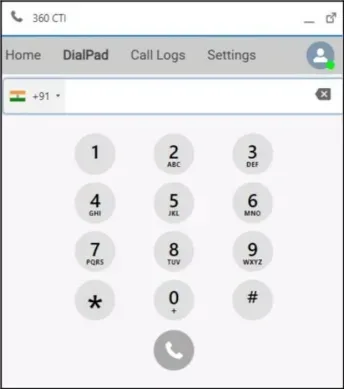
The 360 CTI softphone opens from the utility bar at the bottom of Salesforce. It has four tabs:
| Tab | What you can do |
|---|---|
| Home DialPad Call Logs Settings | See Outgoing, Incoming, Missed and Pending calls, plus the new Voicemail Drop section. Click any entry to call back. Type or paste a number and call it. See recent calls (All or Missed) and call anyone again with one click. Manage personal options such as missed call forwarding numbers, and run Calling Lists. |
Your status Your status tells the system whether you can take calls. Click your profile icon in the softphone to change it.
Your administrator can add reasons under Away and Offline (for example, "Lunch" or "Meeting") so your team knows why you are unavailable.
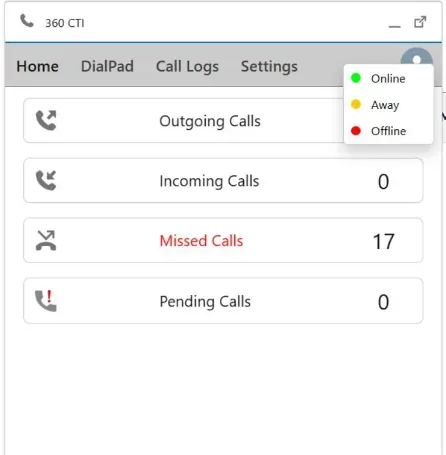
New: The utility bar now shows your current status next to the app name, for example 360 CTI: Online, so you can see it without opening the softphone. It updates instantly when you change status.

Note: The "360 CTI" label in the utility bar can be renamed for your org (for example, to your team's name). This is enabled on request by 360 CTI Support.
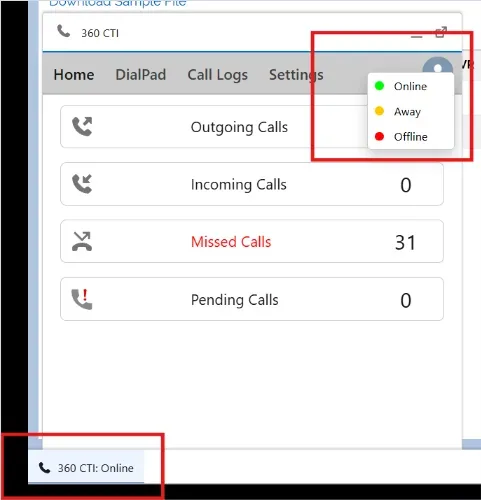
Figure: User status options and "360 CTI: Online" on the Utility Bar User Status Shown on the Utility Bar The Utility Bar now shows the user's status as “360 CTI: Online” or “360 CTI: Offline.” If a customer has renamed their utility bar, admins can still show this status by creating a custom setting record named Override_Utility_Bar_Info, with the utility bar's name entered in that field.
Missed Call & Voicemail Counts on Your Utility Bar (International Numbers)
For international numbers, the Utility Bar can now show missed call and voicemail counts, for example:
“360 CTI (Missed Call: 1 | Voicemail: 0).” This is controlled by a custom setting named Show_Utility_Notification, which is muted by default.
NEW For: All users Where: 360 CTI app › My CTI Setup tab
My CTI Setup is login user personalized settings tab. It gives every user one place to manage their own calling preferences. The tab is added automatically when the package is installed or upgraded. Settings here apply only to login user and to every number assigned to user, directly or through a group.

Why a personal page?
If the ring sound were controlled on a number, turning it off would affect everyone in that number's group.
If it were in General Settings, it would affect the whole company. My CTI Setup lets each person choose for themselves.
| Field | What it does |
|---|---|
| Name | Your Salesforce user name. Read-only. |
| Mobile Number | Enter the user's mobile number. The user's calling agent will be created, updated, or deleted based on the value entered in this field. It is filled from your Salesforce User record the first time the package is installed or upgraded. |
| Voice Message | A message played to the caller when a call routed to you (for example, from an IVR route to user step) is not answered. The call then ends. Example: "I'm out of the office today; I'll call you back tomorrow." |
| Voicemail | A message played when you do not answer, followed by a beep so the caller can leave you a voicemail.( Example : Call routing record owner voice mail or last communicator voice mail ) |
| Mute Incoming Call | Set to Yes to silence the softphone ring sound for incoming calls. Default: No. |

Important: Removing your mobile number from My CTI Setup deletes your calling agent, and you will stop receiving calls.
If both Voice Message and Voicemail are set, the Voice Message plays.

Note: Personal voice messages and voicemail are not used for calls routed by User Config. See Chapter 13 for the full rules.
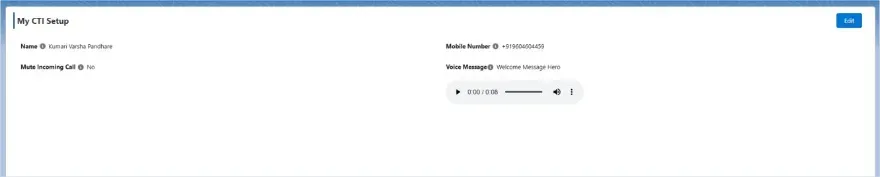
Figure: My CTI Setup tab When the package is upgraded, the mobile number is automatically updated based on the value stored on the user’s record.
The Mute Incoming Call option now works for users with either an international number or a VoIP/PSTN number.
A Voice Message option is displayed when the user has a VoIP/PSTN number. If the user has both an international number and a VoIP/PSTN number, both the Voicemail Type and Voice Message fields are displayed.
Other setup fields are displayed only when Enable India Provider is turned off.
Once a number is assigned to the user, the relevant configuration options become available based on the type of number assigned.
UPDATED For: Agents
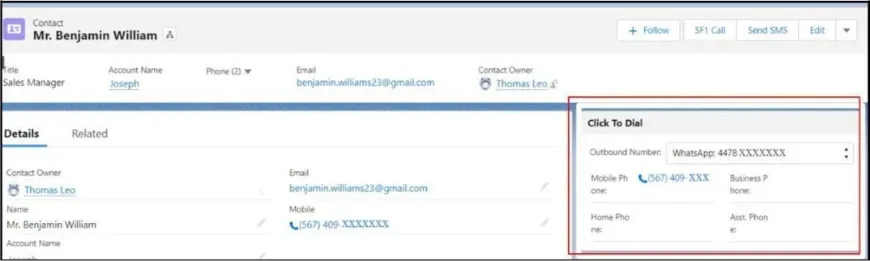
New: While the softphone is still loading after a page refresh, the component shows the message "Please wait while the softphone is loading. Click to dial will be enabled once the softphone is ready." Phone numbers become clickable as soon as the softphone is ready. This prevents calls that seem to "do nothing" when clicked too early.
Screenshot to be added: Click to Dial Component showing the "softphone is loading" message.
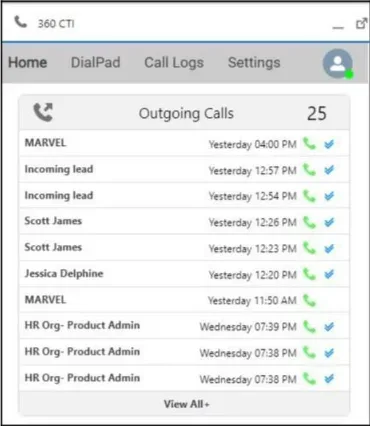
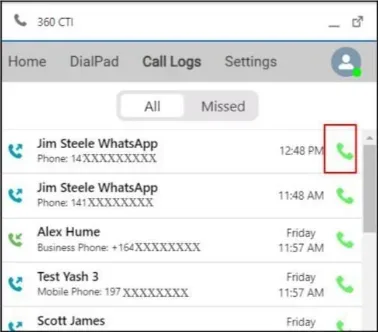
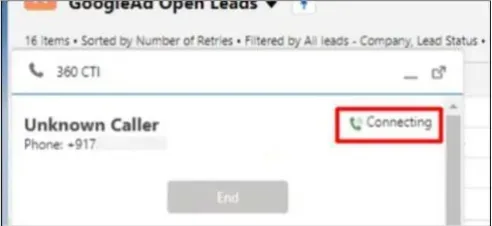
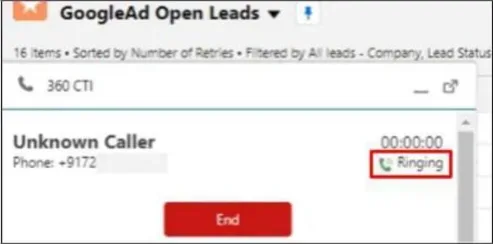
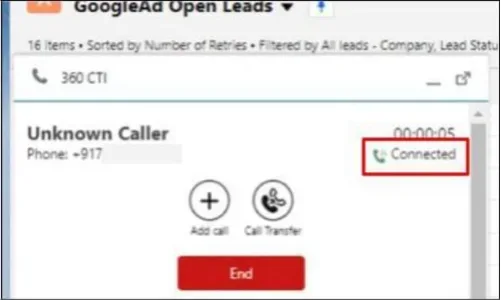
The softphone shows three stages during an outgoing call:
| Stage | What is happening |
|---|---|
| Connecting Ringing Connected | The app is calling your mobile. You answered your mobile; the customer's phone is ringing. The customer answered and you are both on the call. |
UPDATED For: Agents
A call can be ended from your mobile, from the softphone (End), or by the customer. The softphone then shows the call-ended screen, where you:
Change your status from the call-ended screen NEW For: Agents A status icon now appears on the call-ended screen. Use it to mark yourself Away or Offline before saving, so no new call reaches you while you step away. This is especially helpful during Calling Lists, Power Dial and busy inbound shifts.
Note: If you mark yourself Away or Offline during Power Dial or a Calling List and then click Call, the softphone shows a message that you must be Online to make an outgoing call.
Screenshot added ? see page 19-A.
Default caller number If you have more than one CTI number, your administrator can choose which one is used for outgoing calls by default (see 19.2).
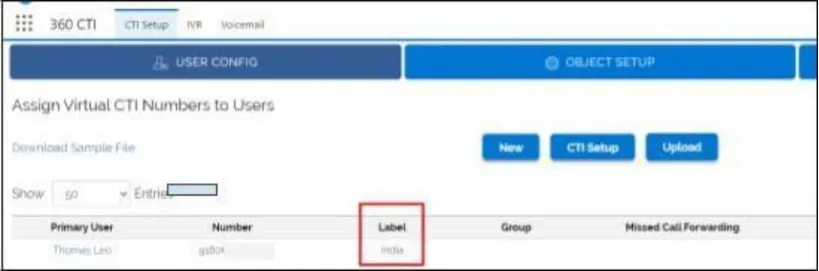
Number labels Numbers can be given labels (for example, "Sales" or "Support") so you can tell them apart. Labels are set in CTI Setup › User Config.
Sticky Caller Sticky Caller keeps the same outgoing number for a customer every time they are called. Customers recognise the number and the relationship feels consistent. Add the Sticky Caller field to the record page, then set the number to use for that record.
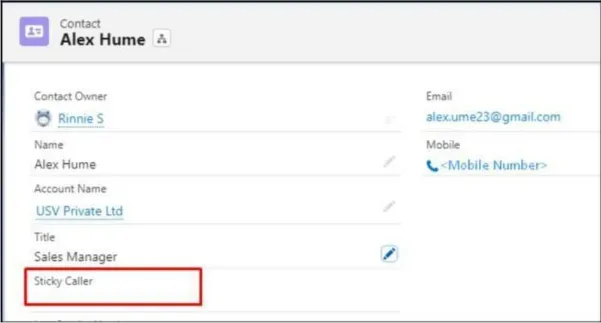

Note: Sticky Caller (which number is used for outgoing calls) is different from Sticky Agent (which agent incoming calls ring first). Sticky Agent is covered in 10.4.
Change Your Status From the Call Disposition Screen When Call Waiting is on and an agent doesn't want more calls while wrapping up, they can now change their status right from the call disposition screen. The user status/avatar icon now appears there for every type of incoming and outgoing call.
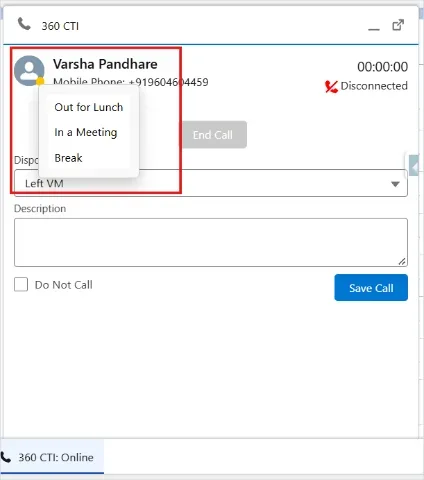
Figure: Status options on the call disposition screen Dialpad Behavior Improvement When a user selects a different “From Number” during a Dialpad search, the call will now be initiated from the selected number instead of the previously used number.
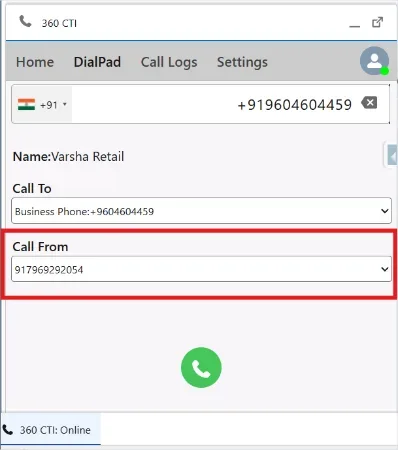
Figure: Call From number on the DialPad
Schedule calls so they appear in the softphone on the right day.
Choose what the Pending Calls section shows (admin)
Create a scheduled call 1.Create Schedule Date Time Field in Call log Object field Data type is (Date/Time)..
2.Create a call record and set the Call Schedule Date and Time.
VOIP When an incoming call arrives, the call rings on the desktop CTI Softphone. The incoming call pop-up displays the customer's details, including Object, Call From, Call To, and other incoming call information.
The user can:
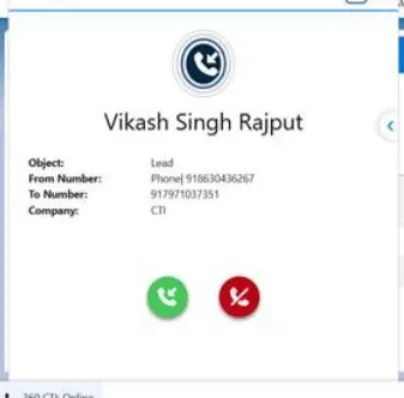
PSTN When an incoming call arrives, the call notification appears on the desktop CTI Softphone. The incoming call pop-up displays the customer's details, including Object, Call From, Call To, and other incoming call information.
At the same time, the call rings on the user's registered mobile number. The user must answer or decline the call from their mobile phone.
If the user answers the call on their mobile phone, the call is connected. After the call ends, the user can enter the call disposition in the CTI Softphone and click Save.
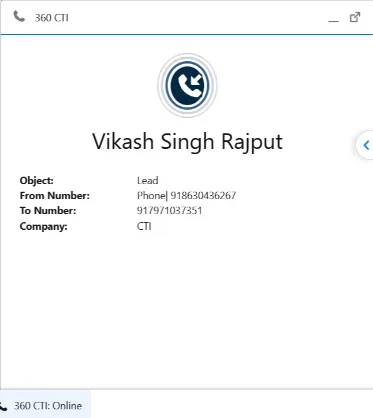
.
Incoming call screen

Tip: Admins decide which record fields appear on the incoming call screen (up to five) in CTI Setup › Object Setup › Incoming Call Fields. System details such as the From and To numbers, number label and group name are shown in addition to these five.
NEW For: Agents
If a new call comes in while you are still on the call-ended screen, you are notified of it. Previously you could only Accept or Reject it, which meant losing unsaved notes. Now you have a third option:
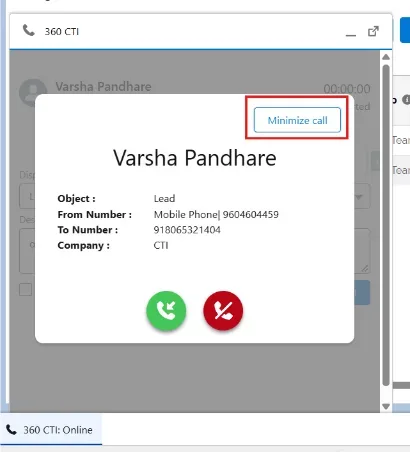
Note: Some teams prefer agents never to be interrupted while writing notes. On request, 360 CTI Support can switch off these notifications. When switched off, a call that arrives during wrap-up is treated as missed (or follows your missed call forwarding) and is counted in the agent's missed calls.
Screenshot to be added: Incoming call notification on the call-ended screen with Accept, Reject and Minimize buttons.
Smarter Notify-in-Call Behavior Agents can now finish filling in their previous call's disposition before the Notify in Call popup appears, instead of being forced to answer it first. Separately, if a user is on the end-call screen, Notify in Call won't interrupt them at all — this is controlled by a custom setting named Disable_Notify, set to Enable = True.
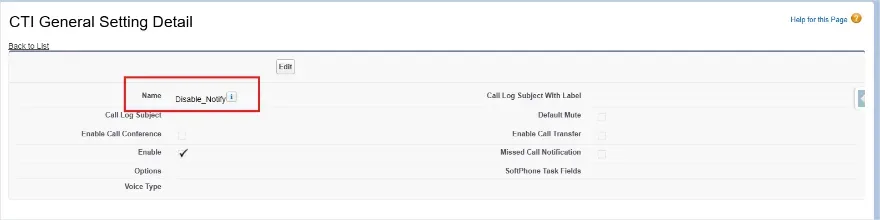
Figure: Disable_Notify custom setting
NEW For: Agents Where: Enabled on request
When a call is routed through a group — from User Config, an IVR or Call Routing — the incoming call pop-up can show thegroup name. Agents who belong to several groups immediately know the context of the call.
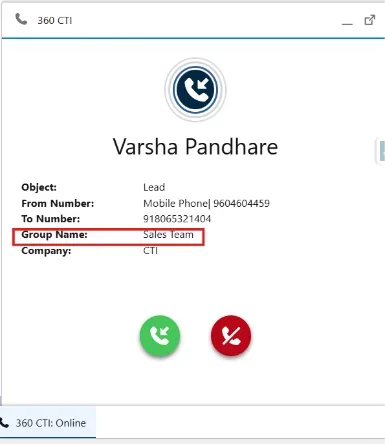

Example Priya is in both the "SMS Support" and "CTI Support" groups. The pop-up tells her which product the caller needs help with. A bilingual agent in "English" and "French" groups knows which language to greet the caller in.

Note: IVRs can also use Call Tags to label calls. Both can be shown together. This option is enabled on request by 360 CTI Support.
Screenshot added ? see page 24-A.
NEW For: Agents Where: My CTI Setup
To stop the softphone playing a ring sound for incoming calls, set Mute Incoming Call to Yes in My CTI Setup (see Chapter 4). Your mobile still rings as normal.
For: Admins Where: CTI Setup › General Settings › Edit › Unknown Call Settings Link Unknown Call automatically creates a record when a call is made to or received from a unknown number that is not in Salesforce, so no potential customer is lost.
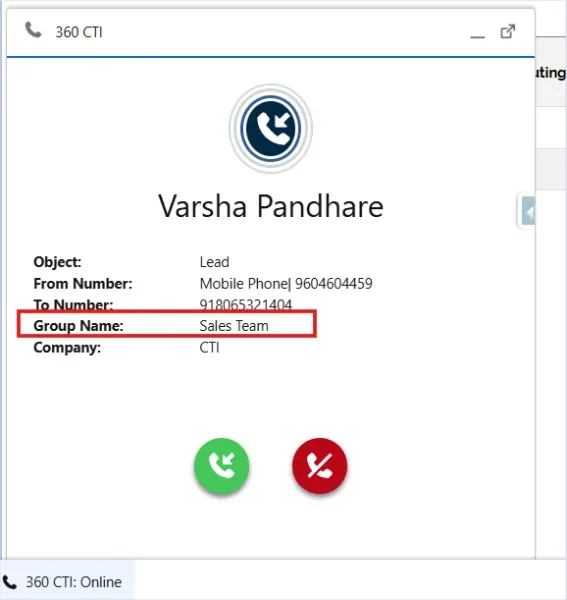
Figure: Group Name on the incoming call screen When a call comes in through a Group, the CTI Softphone now shows that group's name while the call is ringing. If the call is then transferred from User A to User B, User B also sees the name of the group the call originally came in on. This is turned on with a custom setting named ShowQueueNameOnSoftphone.
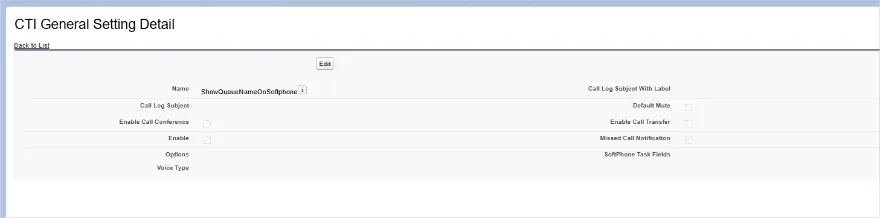
Figure: ShowQueueNameOnSoftphone custom setting
| Setting | Options |
|---|---|
| Object Type Fields | Lead, or Account & Contact. Only one type of record is created. Incoming, Outgoing or Both – which calls create the record. Values to fill in on the new record. |
Link Unknown Call settings
UPDATED For: Agents, Admins Where: Softphone › Home › Missed Calls
Missed calls appear on the softphone Home tab. Click an entry to call back, or clear it when it is handled.
Auto-remove missed calls on callback NEW For: Admins Where: CTI Setup › General Settings › Missed Call Settings Turn on Auto Remove Missed Call On Callback to clear missed calls automatically once they are handled. When a connected call (incoming or outgoing) takes place with the same phone number, all missed call entries from that number are removed from the softphone Home tab.

Example Mansi calls three times while you are busy. You call her back and she answers. All three missed call entries from Mansi disappear from your Home tab.
Screenshot to be added: General Settings › Missed Call Settings with the Auto Remove Missed Call On Callback toggle.
NEW For: Agents Where: Softphone › Home › Voicemail Drop
When a caller leaves a voicemail, a Voicemail Drop task is created and appears in the new Voicemail Drop section of the softphone. Click View All to open a page listing every voicemail, and play the recording from the call log. See Chapter 13 for when voicemail is offered to callers.
See All Voicemails in One Place Agents can now view all voicemails in one place from the Voicemails section on the Softphone Home Tab. When they click View All, an All page opens, showing both their own voicemails and voicemails from other users. To enable this feature, set the Softphone Dashboard Settings for the Voicemail section to App Default in CTI General Settings. This feature is controlled by the ShowAllVoicemails custom setting with Default_mute__c set to true.
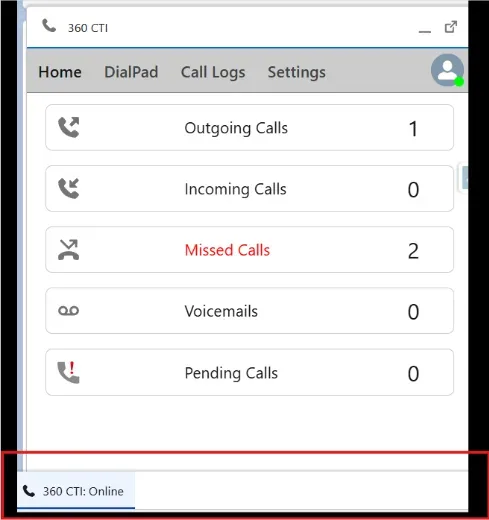
Figure: Voicemails section on the Softphone Home tab
UPDATED For: Agents, Admins Where: CTI Setup › General Settings › Call Settings
Call Transfer moves a live call to another agent, team or number without the customer hanging up.
Turn on call transfer (admin)
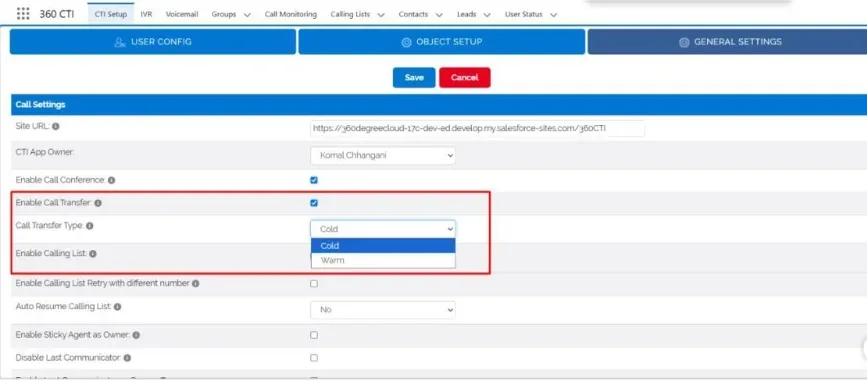
Transfer a call (agent)
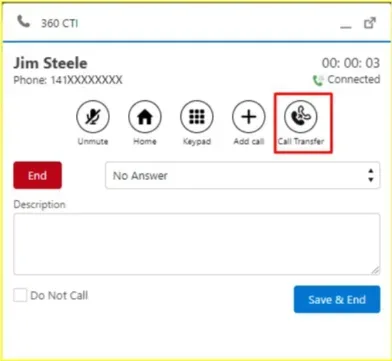
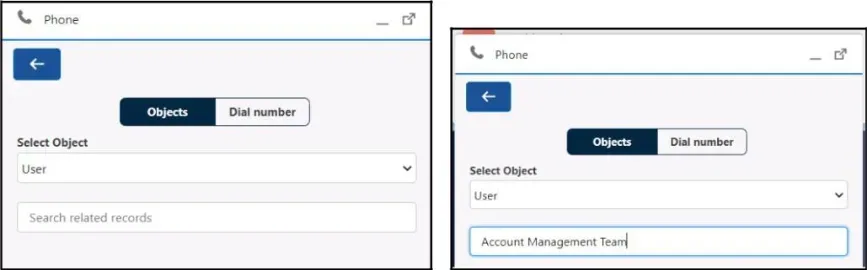
During a call, click Call Transfer in the softphone and choose where to send the call:
| Option | What it does |
|---|---|
| User | Transfer to another Salesforce user. |
| Dial Number | Type an external number to transfer to. |
| Object | Search for a record (for example, a Contact) and transfer to its number. |
| Play Recording (NEW – cold transfer only) | Transfer the customer to a recorded message. You are disconnected, the message plays, and any key the customer presses is saved in the Key Press field on the call log. |

Example At the end of a support call, transfer the customer to a "Please rate our service from 1 to 5" recording.
Their rating is saved in the Key Press field so you can report on it.

Limitation The key pressed after Play Recording is only stored. It cannot route the call onward. To act on the response, build a Salesforce flow on the Key Press field.
Screenshot added ? see page 28-A.
For: Agents When a customer asks not to be called, select the Do Not Call checkbox on their record. No one in your organisation will be able to call that customer from 360 CTI.
Play Recording During Cold Call Transfer When an agent performs a cold call transfer on a VOIP/PSTN number, the customer will now hear a preconfigured voice message as soon as the transferred call is Play Recording. The customer can then respond by pressing a key, and the selected key press is automatically saved in the call log Key pressed Field.
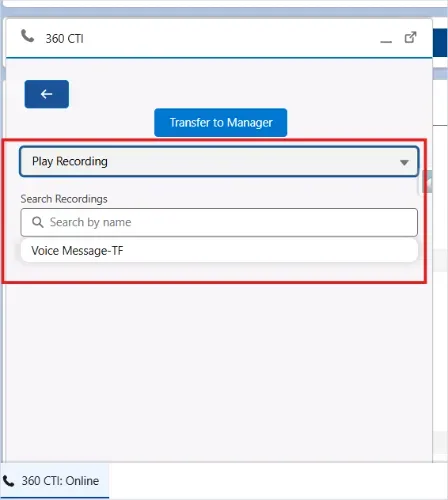
Fig. Cold Transfer to Play Recording Transfer Calls to an Entire Group Agents can now transfer calls to an entire Group instead of transferring them to a single user.When Call Transfer type is Warm.
The system calls group members in round-robin order. If one member does not answer, the call automatically moves to the next available member.
Limitation The transfer may fail if a user is online on the softphone but is not logged in to Salesforce or their CTI component has not loaded. In this situation, the system cannot confirm whether the call successfully reached the user.
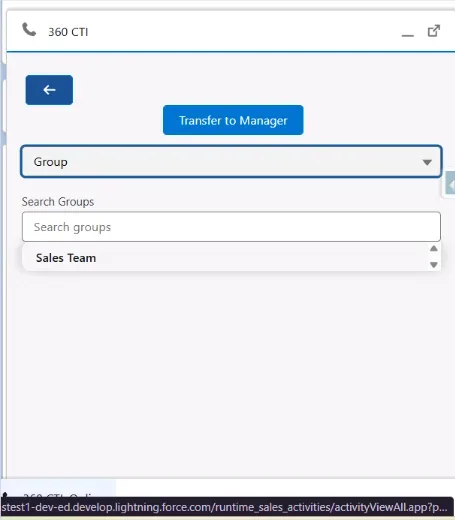
Fig. Call Transfer To Group See When a Transferred or Conference Call Is Answered When User A transfers a call to User B, there was previously no way to tell whether User B is connecting, has answered, has rejected, or hasn't answered at all. A blue banner on the softphone now shows this status, and the same banner appears during call conferences.
Keep Transferring Until Someone Picks Up (Warm Transfer)
If User A does a warm transfer to User B and User B doesn't join, User A can now transfer the call again — to User C, and so on. The transfer button stays visible until someone actually joins the call. This works on Community and SF1 as well.
Do Not Call checkbox on a record
You can also do this during a call: select Do Not Call at the bottom of the softphone before saving.
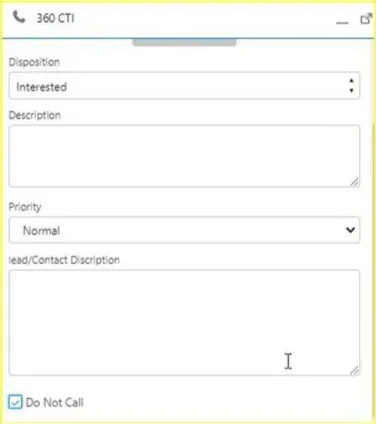
For Custom Object User need to Create DNC__c Checkbox field to set/use the Do not call feature.

Note: Admins can hide the Do Not Call checkbox on the softphone with the Disable DNC setting in General Settings › Other Settings.
A disposition is the outcome of a call, such as Interested, No Answer or Send Proposal. Dispositions make call logging fast and reporting meaningful.
For: Admins Where: CTI Setup › General Settings › Softphone Settings › Manage Disposition Different teams need different outcomes. A sales rep might need "Follow-up Demo" and "Send Proposal", while a support agent needs "Escalated to Tier 2" or "Resolved". Set these per profile:
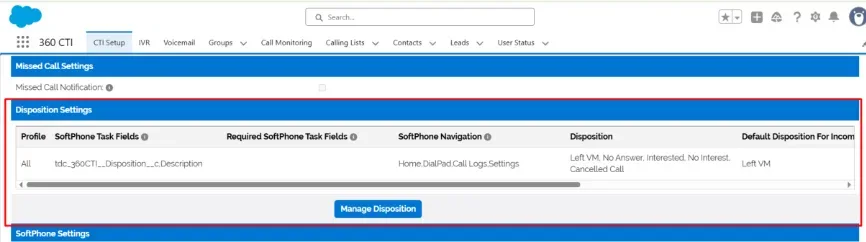
| Column | What it does |
|---|---|
| Profile | The profile the row applies to. |
| Softphone Task Fields | Up to five Task/Call Log fields shown on the softphone. Supported types: Text, Text Area, Picklist, Checkbox, Date, Date/Time. |
| Required Softphone Task Fields | Fields the agent must fill in before saving. |
| Softphone Navigation Menu | The order of tabs in the softphone. |
| Disposition | The disposition values, separated by commas. |
| Default Disposition For Outgoing Call | The value pre-selected on outgoing calls. |
| Default Disposition For Incoming Call | The value pre-selected on incoming calls. |
| Mandatory Comment For Disposition | Dispositions that require a description before saving. |
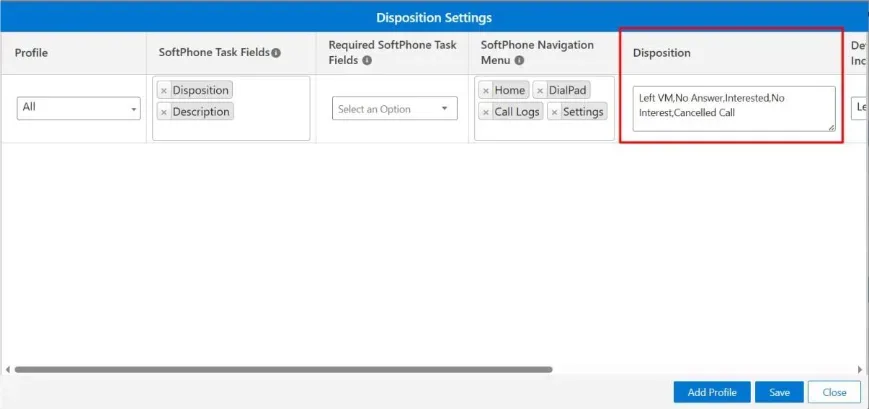
NEW For: Admins
You can override the disposition list for individual records. This is useful when different customers, products or campaigns need their own outcomes.

Example Lead A has Call Disposition values "360 SMS" and "360 CTI". Lead B has "QA Working" and "Awesome".
When you call each lead, the softphone shows only that lead's values.
Screenshot to be added: Call Disposition field on a Lead and the overridden values on the softphone.
NEW For: Admins
The Manage Disposition table needs Salesforce Lightning Web Security to be turned on. If it is off, a message now explains what to do instead of the page breaking. To turn it on, go to Setup › Session Settings and select Use Lightning Web Security for Lightning web components.
For: Agents, Admins Power Dial calls a list of records one after another, so agents spend their time talking instead of dialling.
Each call is logged in Salesforce automatically.
Before you start
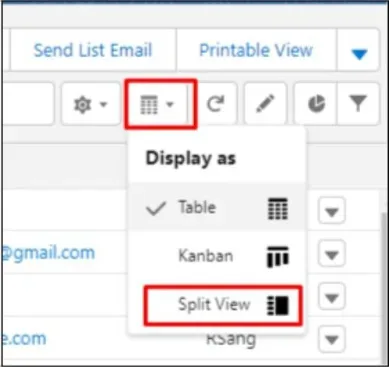
How it works
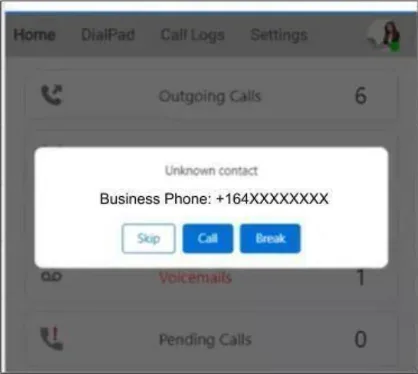

Tip: Popular for outbound sales, collections, and customer service follow-ups where many customers must be reached quickly.
For: Agents, Admins Where: CTI Setup › General Settings › Call Settings A Calling List is a saved list of records that agents call one by one from the softphone. The system moves through the list automatically.

Example Adam has hundreds of trial users to contact. He creates a Calling List of trial users, and the softphone calls each one in turn. He logs notes and transfers calls without leaving the screen, reaching more leads in a few hours than he used to in a week.
Settings (admin)
| Setting | What it does |
|---|---|
| Enable Calling List | Turns the Calling List feature on. |
| Enable Calling List Retry With Different Number | Lets agents retry a record using a different phone number. |
| Auto Resume Calling List | Automatically starts the next call after the current record is saved. |
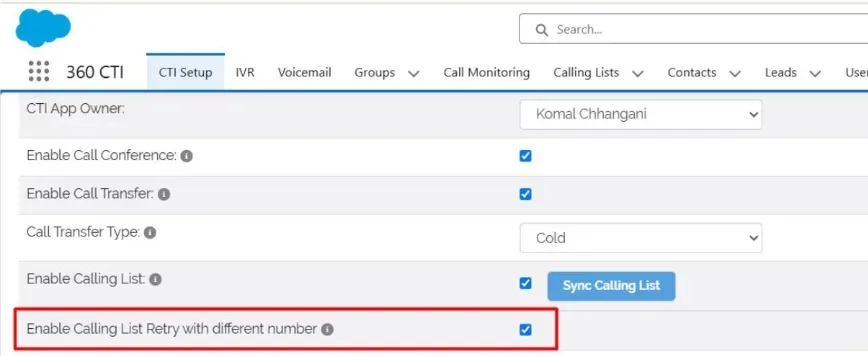
Create a Calling List
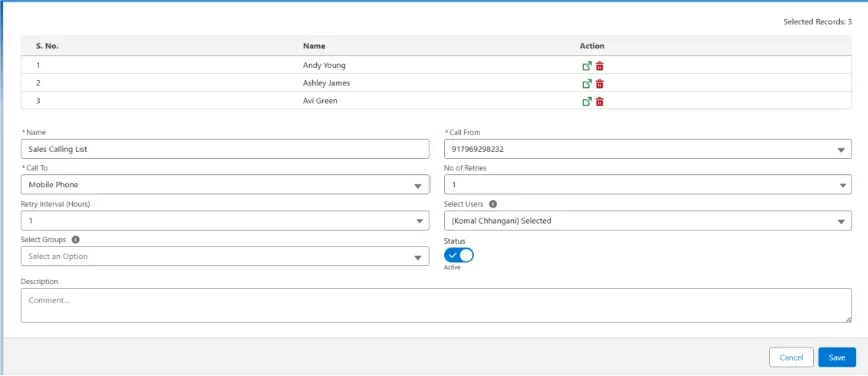
NEW For: Admins, community users
Community (Experience Cloud) users who have a CTI number can now use Power Dial and Calling Lists, with the same softphone experience as internal users.
Power Dial for community users
Calling List for community users
Limitation Community users cannot create Calling Lists themselves.
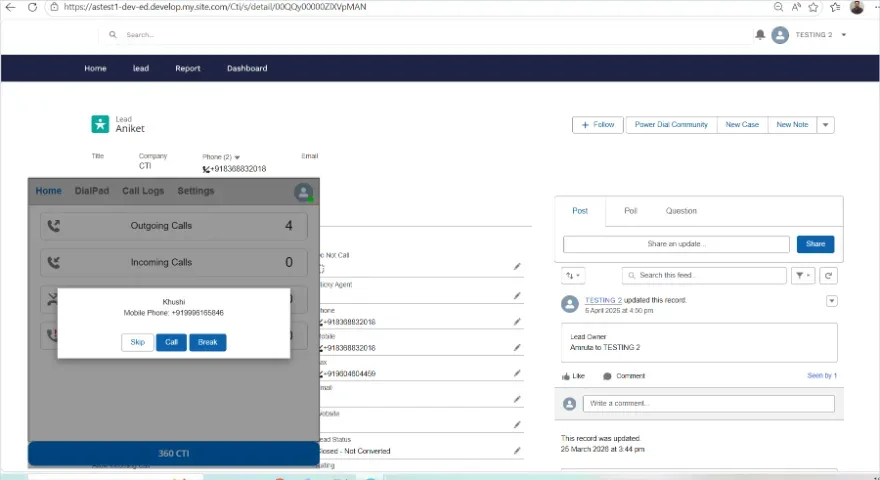
Fig : PowerDial in Community
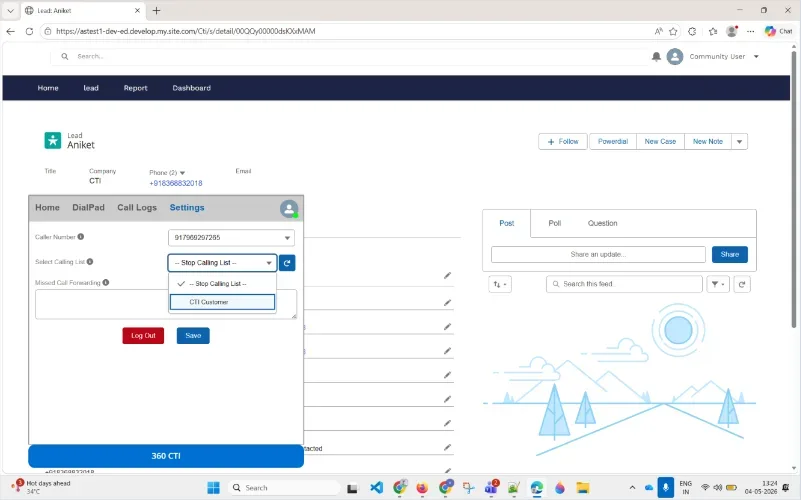
Fig : CallingList in Community
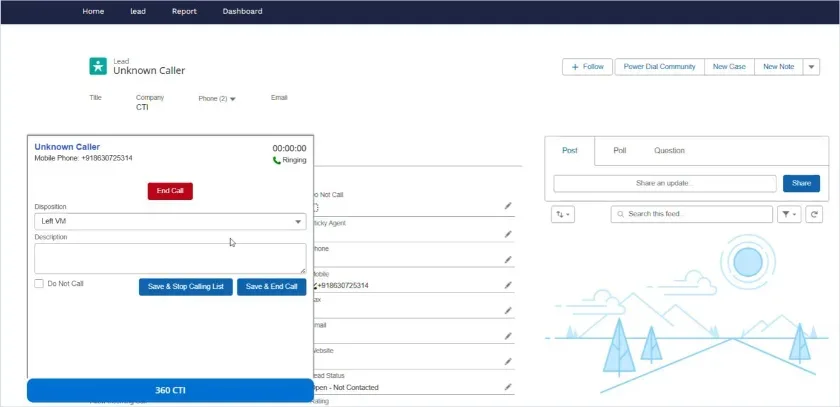
Fig : CallingList in Community (running a Calling List)
Step to setup PowerDial in Community:
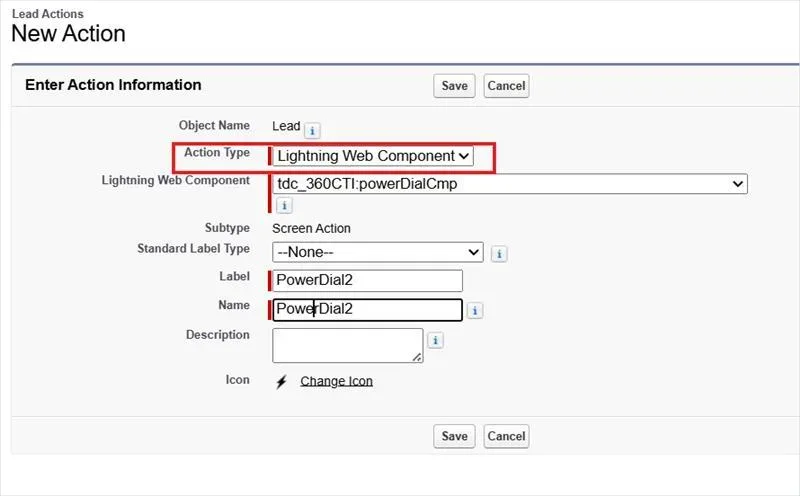
Figure: New Action with tdc_360CTI:powerDialCmp
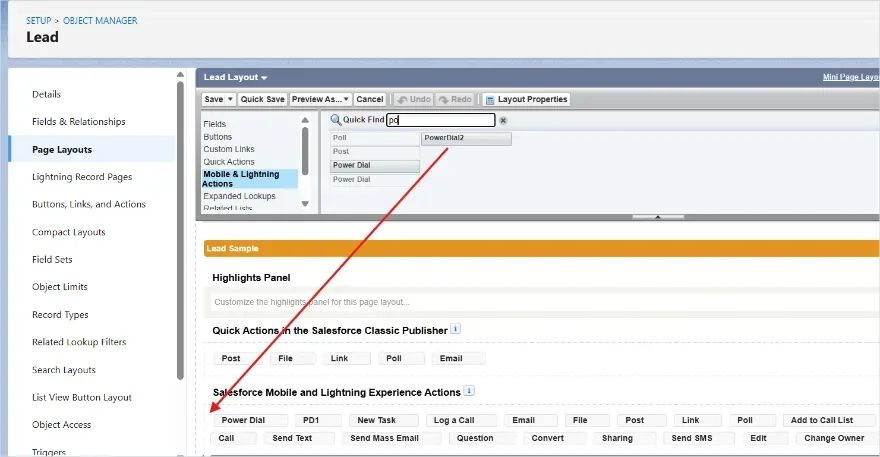
Figure: Adding the Power Dial action to the page layout
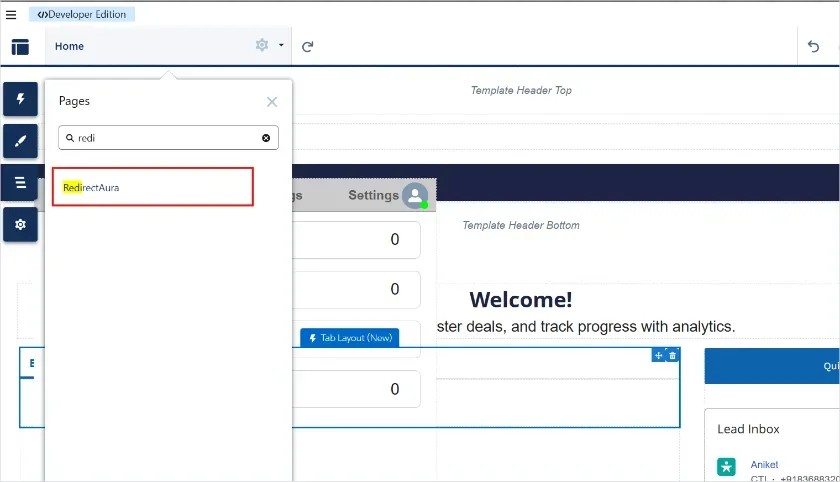
Figure: Searching for RedirectAura
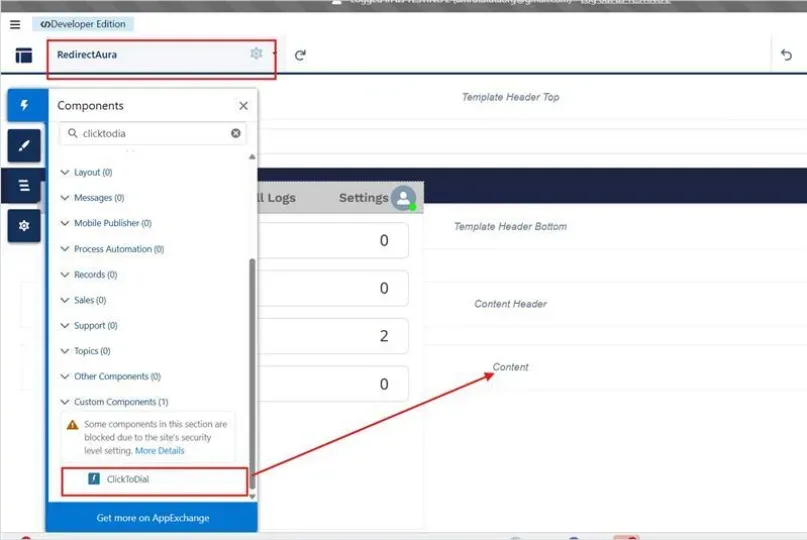
Figure: ClickToDial under Custom Components
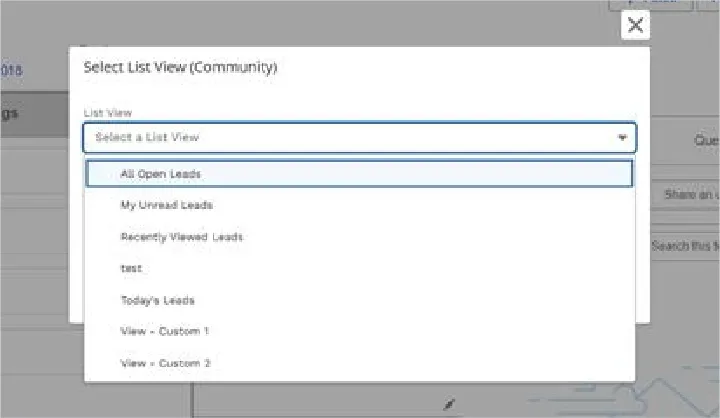
Figure: Select List View (Community)
Routing decides who receives an incoming call. 360 CTI gives you three tools. Choose the one that fits each number:
| Tool | Best for | Chapter |
|---|---|---|
| User Config | Simple set-ups: one number, a primary user, an optional group, and missed call forwarding. Steps follow a fixed order. | 10 |
| Call Routing (NEW) | Flexible routing you design step by step, for one or many numbers: business hours, holidays, several groups in sequence, personalised voicemail. | 11 |
| IVR | Menus where callers press keys ("Press 1 for Sales"), plus data-driven routing with the Validate step. | 12 |

Note: Whatever tool you use, every number is always listed in User Config, which is the central place to see all numbers and their configuration. Call Routing and IVR settings are applied to User Config automatically, so they never conflict.

Note: For every incoming call, the system first checks Out of Office (the time range set in User Config). After that, the configured routing applies.
UPDATED For: Admins Where: CTI Setup › User Config › Edit
In User Config, calls follow a fixed order: the sticky agent (or last communicator) is tried first, then the primary user or group, and finally missed call routing. Each part is explained below.
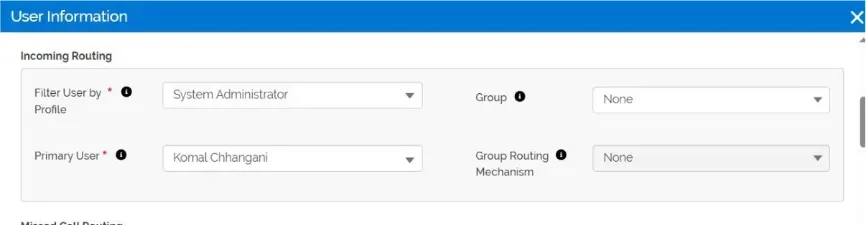
Primary user The user the number belongs to. If no one else is configured, calls ring the primary user. If they answer, the task is assigned to them; if they reject or miss it, a missed call task is assigned to them.
Group Select a group to share incoming calls among its members using a group routing mechanism (see 10.2).
The primary user must be a member of the group. The member who answers gets the call task. If nobody answers, the missed call task goes to the primary user.
Missed call routing Decide what happens when the call is not answered (you are busy, Away, Offline or on another call).
Choose one of:
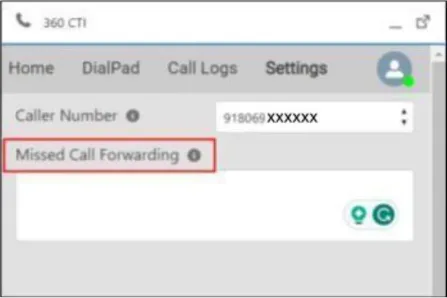

Note: Voice messages and voicemails in User Config apply to the primary user. Personal My CTI Setup voicemail is not used here, because the provider only offers Accept and Reject for these calls.
Out of Office UPDATED Set when a number is out of office and what happens to calls during that time.
| Field | What it does |
|---|---|
| Enable Out Of Office Enable Business Hours Days / Day Range Time Range From / To Start Date / End Date | Turns on out-of-office handling for this number. Use Salesforce Business Hours instead of a manual time range. The days of the week the rule applies to. Start and end time on those days. The period the rule is active. |
| Route To | Group (ring a group using a routing mechanism) or Voice Message (play a message, then end the call; a missed call task goes to the primary user). |
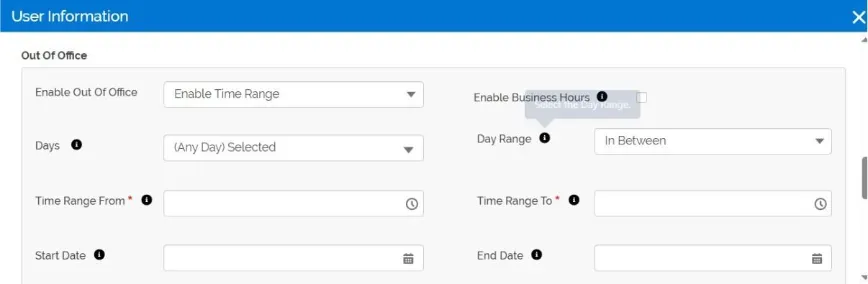
UPDATED For: Admins
Wherever you route to a group — User Config, Out of Office, IVR or Call Routing — choose how members are rung. The options shown can vary slightly by feature (for example, IVR dark hours offer Simultaneous and Round Robin).
| Mechanism | How calls are shared |
|---|---|
| Round Robin | Rings members one at a time in turn. If A, B and C are in the group and B answers a call, the next call starts with C. |
| Simultaneous | Rings group members at the same time. The first to answer takes the call. Now also supported for SIP numbers. The number of members rung at once depends on your telephony provider. |
| Random | Rings a group member random. |
Sequential Rings to Group member as per the priority, away/offline/on call user will skip from the calling Longest Wait Time Rings the member who has gone longest without a call.
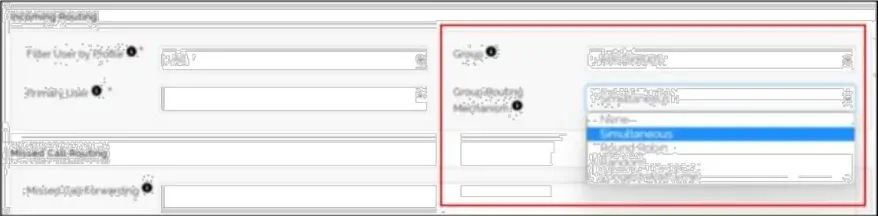
Create and manage groups See 19.4 for how to create groups and add or remove members.
For: Admins Last Communicator routes a returning caller to the agent they last spoke to, so they do not have to repeat themselves. The agent already has the context, which speeds up resolution and builds trust.
Record Owner routes the call to the owner of the matching record.
Ownership options These General Settings options change who receives and owns incoming calls. They appear once enabled for your org by 360 CTI Support. Only one can be turned on at a time.
| Setting | What it does |
|---|---|
| Disable Last Communicator | Calls are never routed to the last communicator; they go straight to the group. |
| Enable Sticky Agent As Owner | The call tries the sticky agent first. If they are unavailable, the call ends and the missed call task is assigned to the sticky agent. |
| Enable Last Communicator As Owner | The call tries the last communicator first. If they are unavailable, the call ends and the missed call task is assigned to the last communicator. |
UPDATED For: Admins
A sticky agent is a specific user who should always receive calls from a particular customer first. You set it in a Sticky Agent field on the customer's record (on any object).
New: You can now list several sticky agents in priority order.

Example Every call from a key account should go to Atul first, then Sikha. If neither answers, the whole 10-person sales group rings. A group alone cannot guarantee that order multiple sticky agents can.
Limitation Sticky Agent applies to incoming calls only.
| Situation | What happens |
|---|---|
| You are Away or Offline | The call is not connected to you. It follows missed call routing (forwarding, voice message or voicemail) if set; otherwise it ends. |
| You are Online but already on a call | A call to your PSTN number is not connected to you and follows missed call routing. |
| A voicemail is set up | The voicemail plays when you are Away, Offline, or already on a call. |
NEW For: Admins Where: CTI Setup › User Config › Edit › Other Settings › Call Direction
Call Direction controls whether a number is used for Incoming, Outgoing or Both. A new option, Missed Call Number, turns the number into a "missed call" line:

Example "Give us a missed call on 98XXXXXXXX to get a callback." Every caller is captured as a lead and a task, at no cost to the caller.
For: Admins Where: CTI Setup › General Settings › Other Settings › Blacklisted Numbers Enter spam or unwanted numbers, separated by commas. Calls from these numbers are not accepted and are not tracked in Salesforce, so agents are not disturbed and your data stays clean.
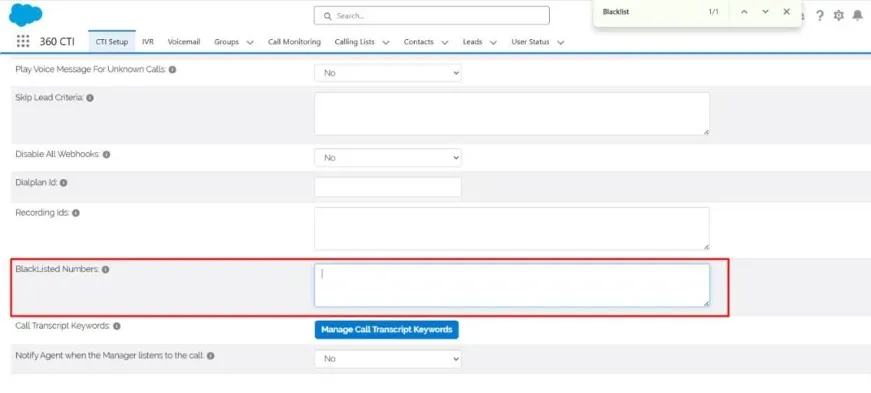
Simultaneous Ring — Call Up to 10 Agents at Once Incoming calls can now ring up to 10 users at the same time. If a group has more than 10 users, the system automatically picks 10 active, licensed users to ring. It also checks how many calling channels are actually free — so if only 5 channels are available out of 10 eligible users, only 5 will be dialed. The call log records why the rest weren't dialed, and if the call is missed, every user who didn't answer is listed in the “Missed By User” field. This works everywhere calls can ring multiple people: User Configuration, IVR, Call Routing, the default Round Robin method, and Missed Call Forwarding.
Sticky Agent is also available as a dedicated step under Call Routing → Auto Forward, where it is checked before proceeding to subsequent routing steps. To be configured as a Sticky Agent, the user must have CTI Number access, an active CTI license, and the User must be active. Additionally, the IVR Route To field now includes Sticky Agent and Sticky Agent Then Group, while the IVR Callback Route To field includes Sticky Agent Then Group.
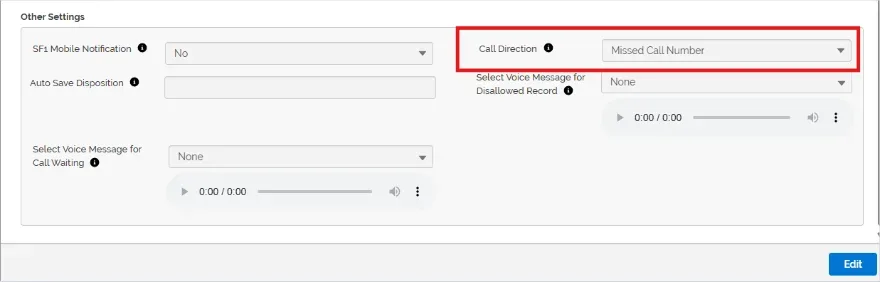
Figure: Call Direction set to Missed Call Number
NEW For: Admins Where: 360 CTI app › Call Routing tab
Call Routing lets you design exactly how incoming calls flow, step by step. User Config follows a fixed order; Call Routing lets you decide which step runs first, what follows, and which step comes last. The Call Routing tab is added automatically with the package.
•

Tip: Call Routing is the recommended approach for new set-ups. Over time, User Config routing options will move to Call Routing.
| Field | What it does |
|---|---|
| Call Routing Name (required) | A name for this routing, for example "Main support line". |
| Primary User | An active, licensed user. Voicemail drops, and missed calls in some cases, are assigned to them. |
| Numbers | One or more assigned numbers that use this routing. |
| Missed Call Notification Users | Users who receive an email when a call is missed by every step. |
| Call Recording | Record Incoming, Outgoing, Both or None for these numbers. |
| Outgoing Call Access Users | Users who can make outgoing calls from these numbers. They do not automatically receive incoming calls. |
| Missed Call Assigned To | Who gets the missed call task. See the options below. |
| Call Routing Time Zone | Company Wise (your org's time zone) or Primary User Wise (the primary user's time zone). Used by time-based and holiday rules. |
| Follow Holiday Calendars | No by default. Set to Yes to handle holiday calls differently (see 11.3). |
Missed Call Assigned To options
| Option | Who gets the missed call task |
|---|---|
| Last Communicator | The agent who last spoke with the caller. If there is no call history, the primary user. |
| Primary User | Always the primary user. |
| Record Owner | The owner of the caller's record (known callers). For unknown callers, the primary user. |
| User | A specific user you choose from the Users field. |

Example: time zone Your company's time zone is set to the US, but you have an India team. Choose Primary User Wise and make the India team lead the primary user, so business hours follow India time.
Screenshot to be added: New Call Routing form with the fields above.
When Follow Holiday Calendars is Yes, calls on a holiday skip the normal steps and follow the Holiday Calendar Routing Option:
| Option | What happens on a holiday |
|---|---|
| Mobile Group Voice Message | The call is forwarded to one mobile number you enter. The call rings a group using the group routing mechanism you choose. A recorded message plays, then the call ends. |
After saving, click the + icon to add steps. Steps run in the order you create them, and you can insert a step between existing ones at any time. The system automatically skips any step that does not apply to a call (for example, Last Communicator when there is no call history).
| Step | What it does |
|---|---|
| Auto Forward | Forwards the call. Route To options: • Number – a valid 10-digit mobile number. • User – one active, licensed user. • Group – a group plus a group routing mechanism. • Sticky Agent – the sticky agent(s) on the caller's record. Skipped if none is set. |
| Last Communicator | Rings the agent the caller last spoke to, if they have access to this number. Skipped if there is no call history. |
| Record Owner | Rings the owner of the caller's record. Runs for known callers only; skipped for unknown callers or inactive owners. |
| Voice Message & Voicemail | Plays a message or takes a voicemail. Four types — see 11.5. |
| Time Based Routing | Runs its own set of steps only during the days and times you choose — see 11.6. |
| Hangup | Ends the call. Must be the last step; no step can follow it. |
Screenshot to be added: Call Routing detail page with steps added.
Choose a Type:
| Type | What happens |
|---|---|
| Voice Message | Plays the selected recording, then ends the call. Turn on Capture Digit to save the key the caller presses (for example, "Press 1 if you would like a callback"). |
| Voicemail | Plays the selected recording and a beep; the caller can leave a message. A Voicemail Drop task is assigned to the Call Routing primary user. |
| Record Owner Voicemail | Plays the record owner's personal voicemail from My CTI Setup. For known callers only. Skipped if the owner has not set a voicemail. |
| Last Communicator Voicemail | Plays the last communicator's personal voicemail from My CTI Setup. Runs only if there is call history. Skipped if no voicemail is set. |

Tip: Personalised voicemail is a powerful differentiator. A customer who usually speaks to Annu hears "Hi, this is Annu, I'm busy right now please leave a message after the beep", while another customer hears Atul's greeting. Customers feel they have reached the right person.
Note: One step plays either a message or takes a voicemail, not both. To say "We are not available, please leave a message after the beep", use Voicemail with a recording containing those words.
If the caller hangs up before the beep, a missed call task is created. If they hang up after the beep, a Voicemail Drop task is created, even if they said nothing.
Callers can speak for up to about one minute after the beep.
Use Time-Based Routing to handle shifts, business hours, evenings and weekends differently. Each time-based rule has its own sub-steps.
| Setting | Options |
|---|---|
| Days Time | Weekdays (Monday–Friday), Weekend, or Any Day (Monday–Sunday). All Day (24 hours) or a start and end time, for example 10:00 AM to 7:00 PM. |
A company works Monday to Friday, 10 AM to 7 PM. This is how its main number could be set up:
| Order | Step | Result |
|---|---|---|
| 1 | Voice Message (greeting) | "Thanks for calling 360 Degree Cloud. This call is recorded. We will connect you shortly." Plays for every call. |
| 2 | Time Based Routing: Weekdays, 10:00 AM – 7:00 PM | Sub-steps: Last Communicator → Auto Forward to Group (Round Robin) → Voice Message: "All our agents are busy. We will call you back." |
| 3 | Time Based Routing: Weekdays, 7:00 PM – 11:45 PM | Sub-step: Voice Message: "Our working hours are 10 AM to 7 PM. We have noted your call and will call you back." |
| 4 | Time Based Routing: Weekend, All Day | Sub-step: Voice Message: "It's our day off. We will call you on Monday." |
With Follow Holiday Calendars set to Yes, holidays get their own handling too. Missed Call Assigned To decides who follows up on every missed call.

Note: A voice message as the first step works as a greeting. There may be a delay of one to two seconds before the next step starts. Test your flow before going live.
Call Routing steps Steps can be added at the start or end of a routing sequence using Add First Routing Step and Add Last Routing Step, and reordered, edited, or removed inline.
Capture Key Presses in Call Routing's Voice Message Step The Voice Message/Voicemail step in Call Routing now includes a Capture Digit toggle. When enabled, the system captures a single digit pressed by the customer during the Voice Message step and stores it in the Key Pressed field of the call log. The key press is captured only when the Capture Digit toggle is enabled and applies only to the Voice Message case.
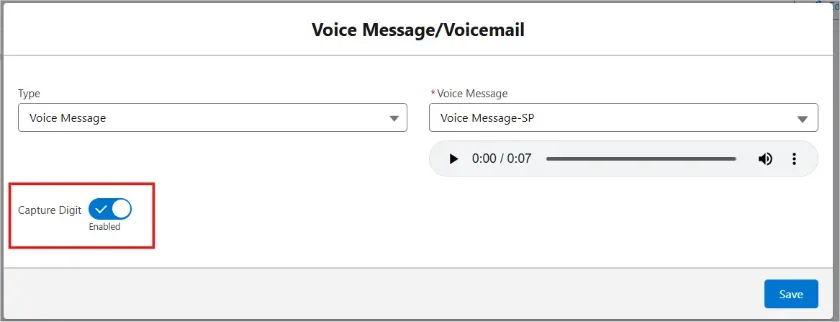
fig. Capture Digit Toggle on Voice Message/Voicemail Step Record Owner & Last Communicator Voicemail in Call Routing The Voice Message/Voicemail step in Call Routing now supports two additional options:
If no voicemail greeting is configured, the system plays the record owner’s voice message, if available. If neither is configured, the call is disconnected without playing a message.
The resulting voicemail or voice-message task is assigned to the Record Owner. For missed calls, the task is assigned to the user configured in Call Routing.
The same process applies to Last Communicator Voicemail, where the voicemail greeting and voice message are checked for the Last Communicator, and the resulting task is assigned accordingly.
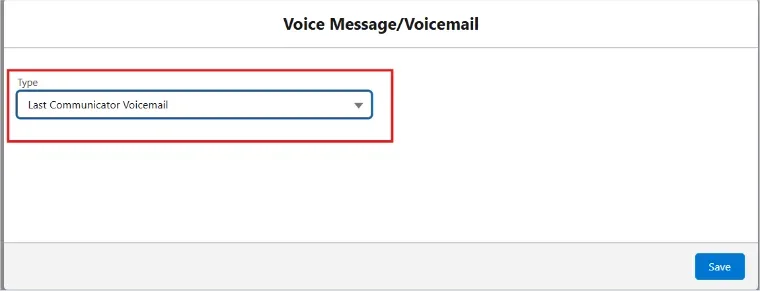
Fig. Last Communicator Voicemail
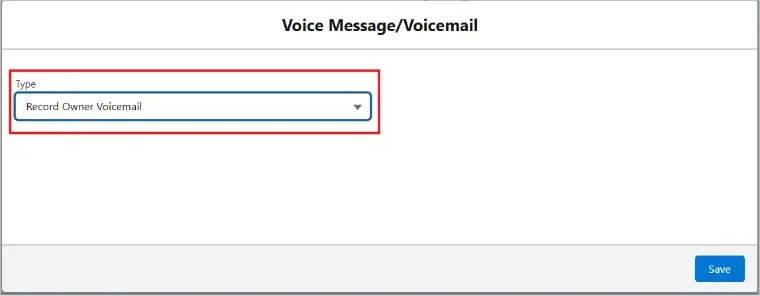
Fig. Record Owner Voicemail Recordings Must Match Your Call Routing/IVR's Provider Voice recordings are now tagged by provider:
If a recording from a different provider is selected—for example, a SIP recording in a Teleforce-based setup—the system displays an error while saving, indicating that the recording is not compatible with the selected Call Routing or IVR.
An IVR answers calls automatically, plays menus, and routes callers based on the keys they press — for example, "Press 1 for Sales, press 2 for Support". It reduces waiting time and gets callers to the right person without manual effort.
Important: A number used for an IVR should not be used for any other purpose.
UPDATED For: Admins Where: 360 CTI app › IVR tab
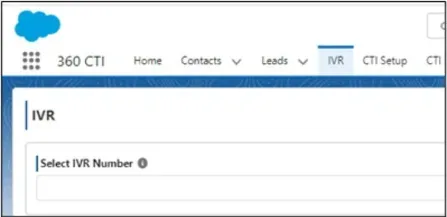
New IVR-level settings
| Field | What it does |
|---|---|
| Primary User (NEW) | One active, licensed user for the IVR. Voicemail drops from this IVR are assigned to them. |
| Voice Message / Voicemail (NEW, optional) | Plays when a call routed by an IVR entry (for example, to a group) is not answered. With voicemail, the caller can leave a message after the beep. |
| Missed Call Assigned To | Who receives missed call tasks from the IVR, for example when a caller hangs up before the voicemail beep. |
Enable Holiday Calender Enable Holiday Calendar allows the IVR to identify configured holidays and apply the defined Holiday Calendar routing. When a call is received on a configured holiday, the IVR follows the selected holiday route, such as playing a Voice Message/Mobile/Group/Voicemail. On non-holiday dates, the call follows the normal IVR routing flow.
Enable Dark Day Enable Dark Days allows the IVR to identify configured dark days and apply the defined Dark Days routing. When a call is received on a configured dark day, the IVR follows the selected dark day route, such as playing a Voice Message, routing the call to a Mobile number or Group, or sending the caller to Voicemail. On non-dark days, the call follows the normal IVR routing flow.
Enable Dark Hours Enable Dark Hours allows the IVR to identify the configured dark hours and apply the defined Dark Hours routing. When a call is received during the configured dark hours, the IVR follows the selected route, such as playing a Voice Message, routing the call to a Mobile number or Group, or sending the caller to Voicemail. Outside the configured dark hours, the call follows the normal IVR routing flow.
Enable Callback Enable Callback allows known customers to receive a callback without playing the IVR greeting or going through the normal IVR flow. When enabled, the system identifies the customer and routes the callback request based on the configured callback settings. This feature applies only to known customers; unknown customers follow the normal IVR flow.
Auto Save Disposition Set the time interval in seconds after which the call disposition will be automatically saved if the user does not manually save it. Once the configured time interval is reached, the system automatically saves the call disposition.
UPDATED For: Admins
Each entry links a digit to an action in the Then field. Entries can have child entries to build multi-level menus.

| Action (Then) | What it does |
|---|---|
| Greeting Message | Plays the configured greeting when the key is pressed. |
| Play Recording | Plays a recording. Turn on Enable Voicemail Recording to play the voicemail recording instead. |
| Play Recording Then Route To (UPDATED) | Plays a message first, then routes the caller — for example, to a user, group, record owner or sticky agent. |
| Route To | Routes the call. Options include User, Queue (group), Record Owner, Last Communicator, Mobile, Sticky Agent and Call Routing, plus combinations that also ring the Salesforce mobile app or fall back to a queue. |
| Send To New IVR | Moves the caller to a sub-menu with its own message and entries. |
| Send To Voicemail | Sends the caller straight to voicemail. |
| Replay Message (NEW) | Replays the current menu when the caller presses the key. Add it as a child entry under Send To New IVR. Example: "To hear these options again, press 3." |
| Back Level | Takes the caller back to the previous (parent) menu. |
| Hang Up (NEW) | Ends the call, with or without a closing message. A call task is still created and assigned. |
| Validate (NEW) | Checks the caller against your Salesforce data and routes based on the result (see 12.5). |
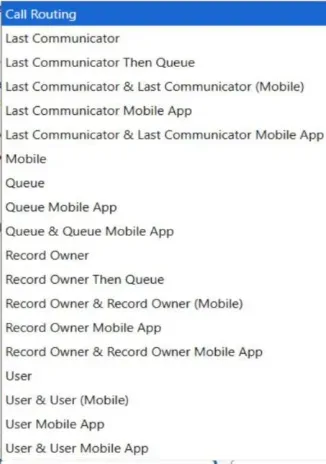

Note: Replay Message vs. Back Level vs. No Response: Replay Message repeats the *current* menu on request. Back Level returns to the *previous* menu. The No Response message plays automatically when the caller presses nothing.
Hang Up with a message is useful to close a branch politely, for example: "Thank you for calling. We will get back to you shortly."
NEW For: Admins Where: IVR › Route To entry › Edit
Each Route To entry can now have its own holiday calendar and "dark hours" (a break period such as lunch). This gives you control per team inside one IVR.
| Setting | What it does |
|---|---|
| Enable Holiday Calendar | Set to Yes, then choose the Holiday Calendar and Route To: Voice Message or Voicemail. |
| Enable Dark Hours | Set a time range (for example, 1:00 PM – 2:00 PM). Calls to this step during that time get the selected Voice Message or Voicemail. |
IVR Popup Feature Now, when users click on the “+ IVR Entry” button or icon, a dedicated popup opens for entering details in a structured way.
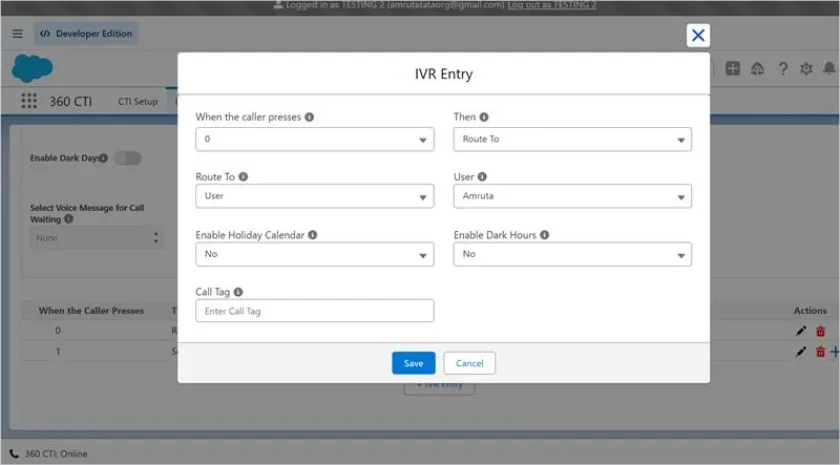
Figure: IVR Entry popup New Field on IVR: Primary User IVR now has a Primary User field — a dropdown listing all active, licensed users.

Figure: Primary User on the IVR Star (*) Key Now Works in IVR IVR previously didn't recognize the star (*) key as a valid input. It now does, so customers can press * anywhere IVR captures a digit.
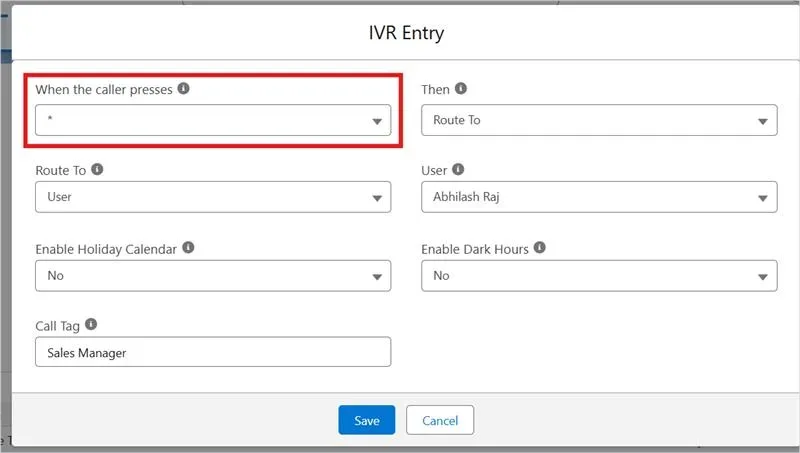
Figure: Star (*) key in When the caller presses Hang Up a Call by Pressing a Key in IVR A new IVR option allows customers to end the call by pressing a configured key. When Hang Up is selected in the Route To dropdown, an optional Voice Message field is displayed. If a voice message is configured, it is played to the customer just before the call is disconnected. Voice Message is an optional.
The call is assigned to the user configured in Missed Call Assigned To, and the key pressed by the customer is captured for reference.
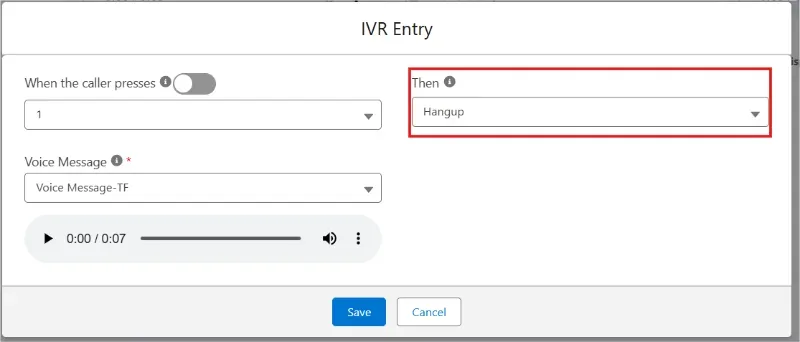
Figure: Hangup action in IVR Entry Replay a Message in IVR The IVR Route To step now supports a Replay Message option. This allows customers to replay the previous message by pressing a configured key, such as 9. When the customer selects the configured key, the message is played again.
The Replay Message option is available only for Send To New IVR steps.
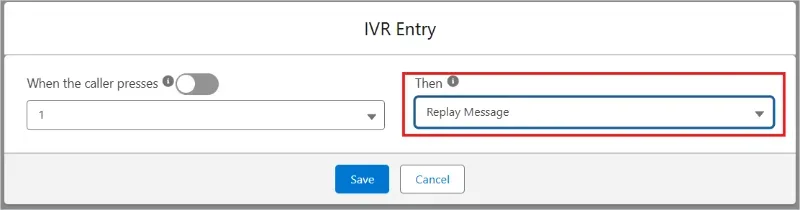
fig. Replay message Capture More Than One Key Press From Customers (Max DTMF Input)
The IVR and Outbound IVR Flow now support capturing multiple key presses from customers. A new Max DTMF Input field allows admins to define the maximum number of digits the customer can enter. The default value is 1, which maintains the existing behavior.
For the Outbound IVR Flow, the Max DTMF Input field is currently supported only with the SIP provider.
The digits entered by the customer are captured and stored in the Key Pressed field on the Call Log.
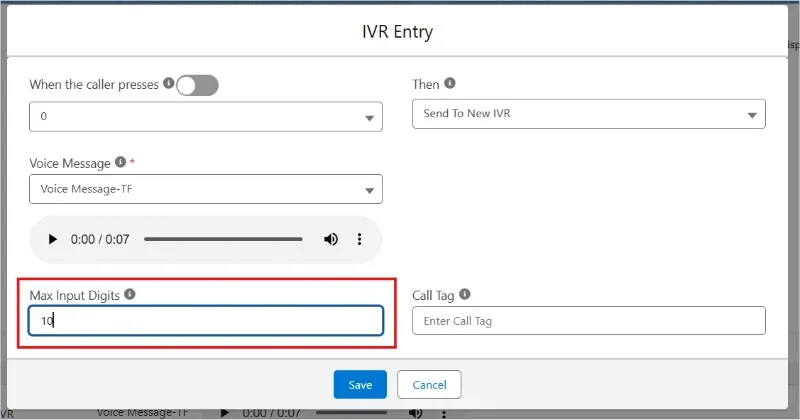
fig. Max Input Digits in IVR Route Calls (and Callbacks) From IVR Into Call Routing The IVR Route To and Callback Route To options can now route calls directly to a Call Routing configuration.
For callbacks, when Call Routing is selected, only active Call Routing configurations associated with the same provider number as the IVR are available. Active Call Routing configurations without a provider number are also available.
When call is forwarded in the call Routing and If the call is missed from the call Routing Steps than missed call task and call is automatically assigned to the user configured in the selected Call Routing.
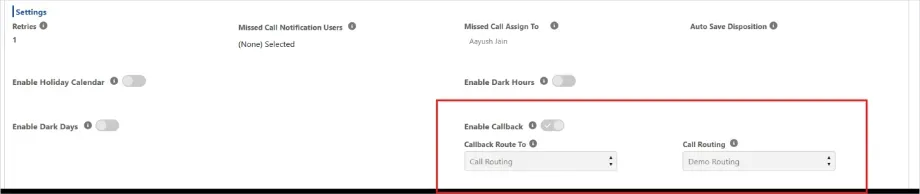
fig.Call routing in Enable Callback Route to Example One IVR serves US and India sales teams: "Press 1 for US Sales, press 2 for India Sales". Each step follows its own team's holidays and break times, and callers outside those hours hear the right message or can leave a voicemail.
Screenshot added ? see page 50-A.
For: Admins Dark hours for the whole IVR define an after-hours period. Calls received during this time are routed according to the option you choose:
| Option | What happens during dark hours |
|---|---|
| Mobile | Calls go to the mobile number you specify. |
| Queue | Calls go to a queue (Dark Hour Route To) using Simultaneous ring (all members at once) or Round Robin (one by one). |
| Voicemail | Calls go to voicemail. Use a robotic voice or a recorded message. |
| Set the period with IVR Dark Hours From and IVR Dark Hours To. If missed call notifications are enabled in General Settings, the Missed Call Notification User receives an email for missed IVR calls. |
NEW For: Admins
The Validate action checks who is calling before routing the call. It looks up the caller in Salesforce and creates branches for each result, so you can route based on real customer data.
How it works
Enable Holiday & Enable Dark Hours Handling in IVR Entry Level The IVR now supports Holiday and Dark Hours call handling at the step level.
For Holiday call handling, users can enable the Holiday Calendar and select a Route To option. The Route To dropdown provides two options: Voice Message and Voicemail.
For Dark Hours, users can enable the option and define the Start Time and End Time. A voice message can be configured to inform customers that they are calling outside business hours. After the message is played, the call is automatically disconnected.
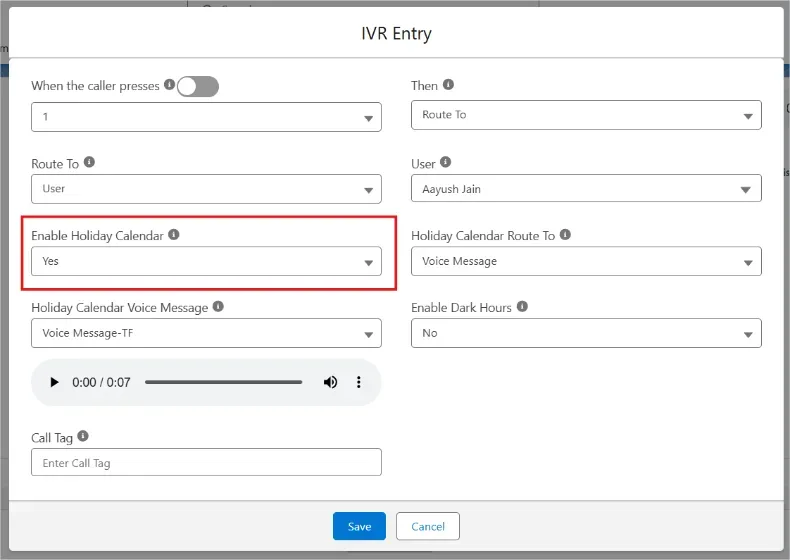
Fig. Enable Holiday Calender
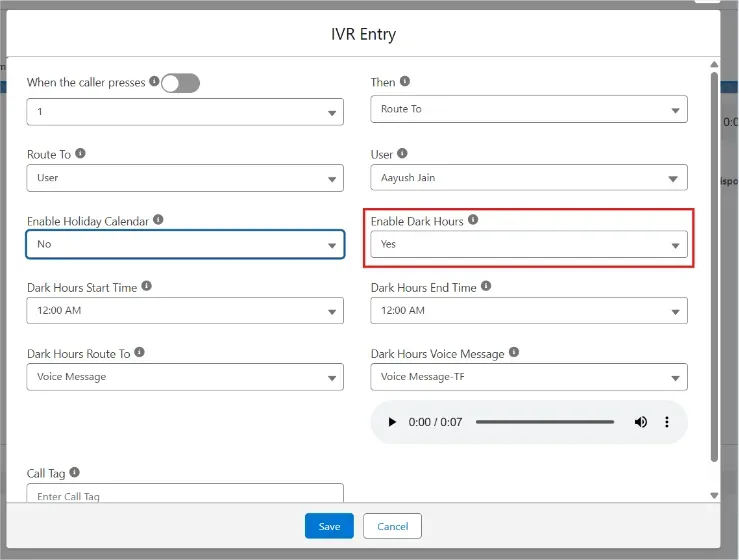
Fig. Enable Dark Hours

Example A customer calls and presses 1 for English. The IVR finds their account and their one open case. Because the case is High priority, the call goes straight to the senior support group.
Screenshots for this section have been added below.
Examples VIP treatment: a caller whose record has an owner is connected straight to that owner, skipping the menu. A caller who called yesterday goes back to the last agent they spoke to. If that agent is busy, the call moves to the team queue after a few rings.
No more missed leads: the IVR tries the record owner or last communicator first, rings their mobile app at the same time, and then passes the call to the whole queue.
After-hours care: a retailer uses dark hours so after-hours callers are routed to an on-call mobile, a queue or voicemail, depending on the key they press.
Record Validation within IVR Introduced a Record Validation feature that validates user input in real-time during IVR interactions. When a call is received, the system captures the input, validates it against configured records, and proceeds based on the match. If validation succeeds or fails, the flow will continue automatically.
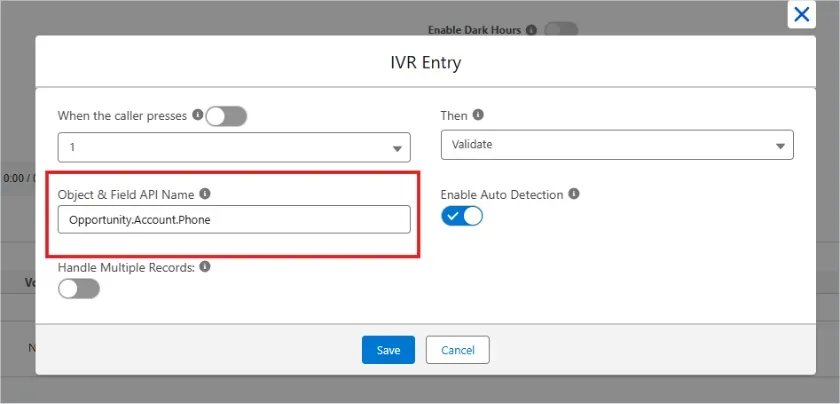
Figure: Validate entry with Object & Field API Name Example:
Field Descriptions
Format:
ObjectAPIName.FieldName1,FieldName2 Note: This feature supports child-to-parent lookups up to 2 levels deep.
For example: Opportunity.Account.Phone
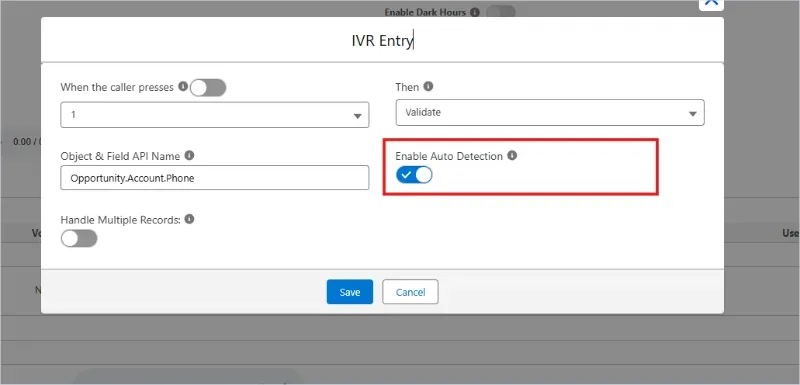
Figure: Enable Auto Detection
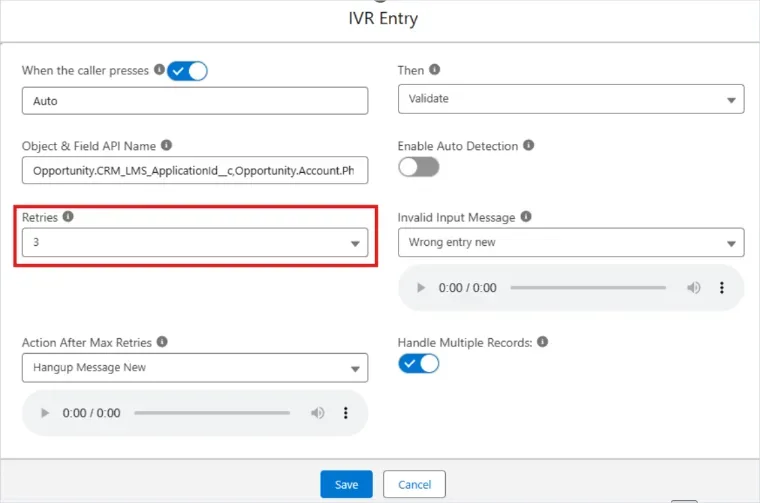
Figure: Retries, Invalid Input Message and Action After Max Retries
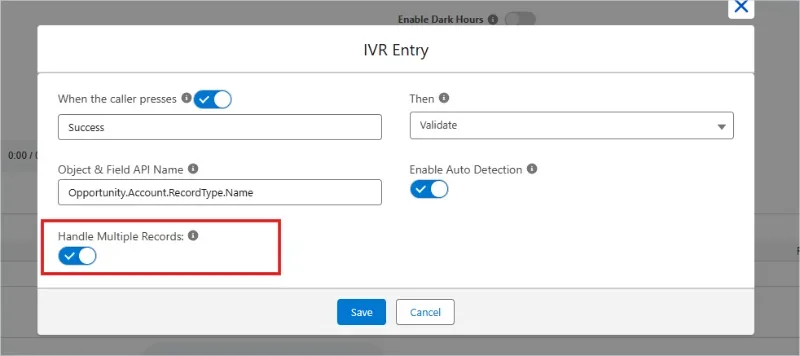
Figure: Handle Multiple Records Keyword Based Routing Keyword-Based Routing enables the IVR system to identify specific keywords, configured values during the interaction, and automatically route the call to the relevant IVR flow based on the value present in the field (Object & Field API Name). If the value is not found in any IVR sub step, then the success or failure steps are executed based on whether the record is found or not.
Note:
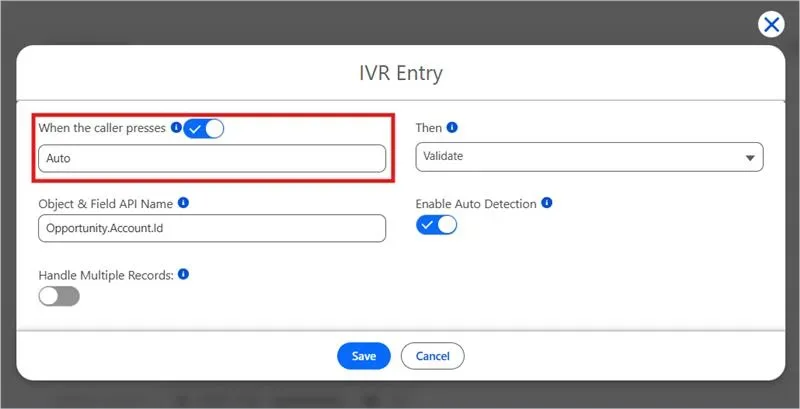
Figure: "Auto" keyword step For example:
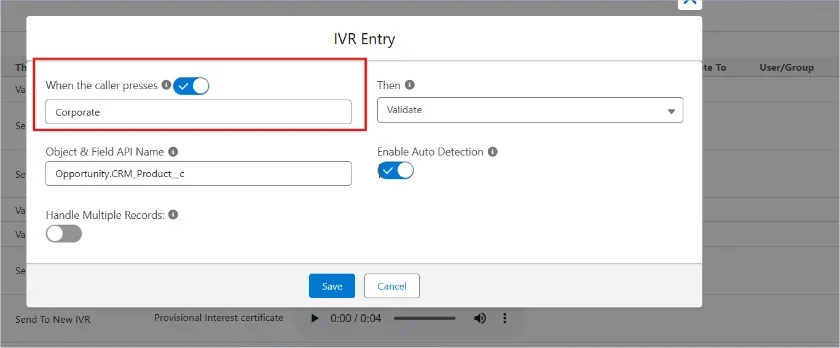
Figure: "Corporate" keyword step
| Voice message | Voicemail |
|---|---|
| What the caller hears A recorded message. | A recorded message, then a beep. |
| Can the caller respond? Only by pressing keys, where Capture Digit is available. | Yes — they can record a spoken message after the beep. |
| What is created A missed call task. | A Voicemail Drop task if they hang up after the beep; a missed call task if they hang up before it. |
| Use it for Information: office closed, holiday, "we will call you back". | Collecting messages from callers. |
UPDATED For: Admins Where: 360 CTI app › Voicemail tab
All voice messages and voicemail greetings are managed in the Voicemail tab. Recordings you create, upload or delete here are now synced automatically with the telephony provider — no separate set- up at the provider is needed.
| Action | How |
|---|---|
| Record | Click record, speak your message, stop, give it a name and click Save. Recordings can be up to 30 seconds. |
| Upload | Click Upload, choose an MP3 or WAV file (up to 60 seconds), give it a name and save. |
| Delete | Delete a recording here to remove it from the provider as well. |
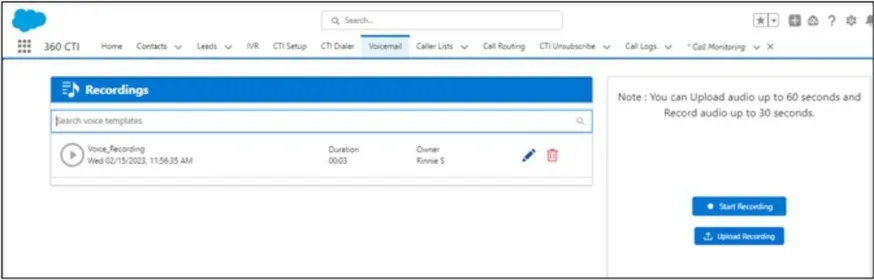
Screenshot added ? see page 52-A.
Admins can now upload, view, and delete Voice Messages directly from Salesforce, with changes automatically synced to the provider portal.
This removes the dependency on the previous Custom Setting, as the Voice Message options are now available under Voicemail Tab.
For customers using both VOIP/PSTN and an International Number, uploading or deleting a Voice Message will automatically update the recording for both.
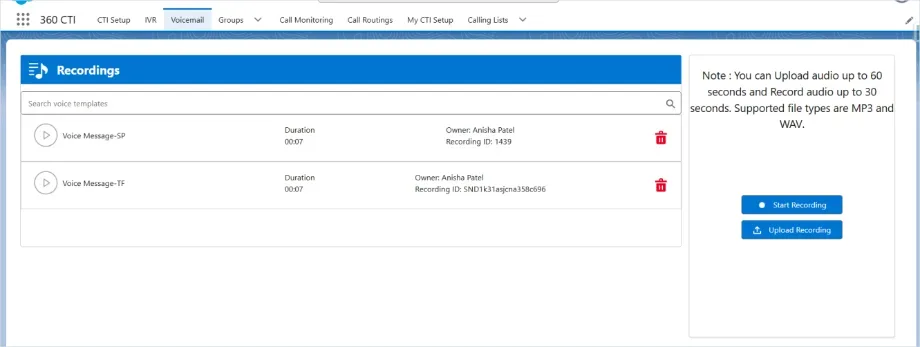
fig. Voicemail Tab
| Where the call is routed | Message used |
|---|---|
| User Config (missed call routing / out of office) | The User Config voice message or voicemail. Tasks go to the User Config primary user. |
| IVR entry routed to a group | The IVR-level voice message/voicemail, if set. |
| IVR entry routed to a user (with no IVR-level voicemail) | That user's My CTI Setup voice message, or else their voicemail. If neither is set, the call ends. |
| Call Routing Voicemail step | The recording selected in the step. Tasks go to the Call Routing primary user. |
| Call Routing Record Owner / Last Communicator Voicemail | That person's My CTI Setup voicemail. The step is skipped if none is set. |

Note: When both a voice message and a voicemail are available for the same person, the voice message takes priority.
UPDATED For: Admins Where: Salesforce Setup › Flows
Use a Salesforce flow to place an automatic call when something happens in Salesforce — for example, when a lead is created or its status changes. Choose an Operation Type:
| Operation type | What happens |
|---|---|
| Call | Places the call through the user's softphone. |
| Voice Message | Plays the selected recording to the customer, then ends the call. Key presses are not stored. |
| Capture Response (NEW) | Plays the recording and saves the keys the customer presses in the call log's Key Press field. Set Max Input Digits to capture more than one digit, for example a 10-digit phone number or an ID. |
| IVR (NEW) | Connects the answered call to an active IVR you select. Everything an IVR can do is available — menus, messages and routing to users, groups, record owners or last communicators. |

Tip: Use Voice Message or Capture Response for simple announcements and surveys. Use IVR when the customer's choice should lead to an agent for example, "Our Diwali offer is live. Press 1 to speak to our team."

Limitation Multi-digit capture (Max Input Digits) is available for SIP numbers only. Teleforce numbers capture a single digit.
Outbound IVR Flow calls use your normal calling channels. If all channels are busy, the call is not placed, but a call log is still created.
Screenshot to be added: Flow action with Operation Type set to Capture Response and Max Input Digits.
UPDATED For: Admins
Voice Broadcast plays a recorded message to many customers at once. It uses dedicated broadcast numbers and channels, so it does not affect your agents' calling capacity.

Limitation Voice Broadcast cannot route answered calls to agents. With thousands of calls going out, there may not be enough free agents, and callers would be dropped. For calls that should reach an agent, use an Outbound IVR Flow with the IVR operation type.
Play a Message and Transfer the Call After a Key Press (Outbound IVR)
In Outbound IVR flows, once a customer presses a key, the system can now play a message before disconnecting — or, after that message, transfer the call to an agent or queue. The message step is optional. This works by having the outbound IVR call a number-based IVR, which plays its greeting and continues the flow from there.
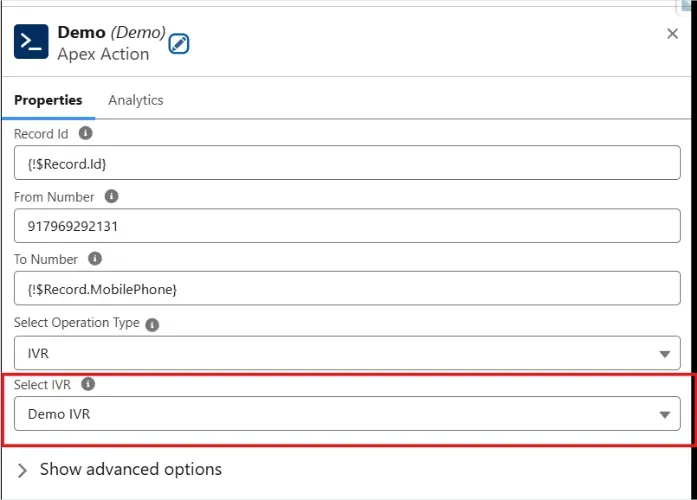
Figure: Outbound IVR Flow action with Select IVR Outbound IVR Flow Rebuilt on Lightning Web Components The Outbound IVR flow page has been rebuilt as a Lightning Web Component (LWC) page for better performance and consistency with the rest of the app.
Play a Message Before Disconnecting in Voice Broadcast In Voice Broadcast, when the action type is set to Capture Digit, the system now allows you to play a predefined voice message after the customer presses a key and before the call is disconnected.
A new Post Capture Voice Message option is available for the Capture Digit action. Users can select the message that should be played after digit capture, providing customers with a clear closing message or next-step information before the call ends.
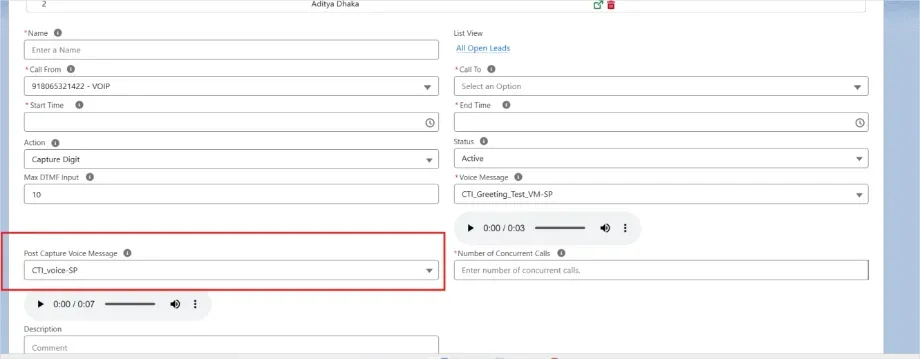
fig. Post Capture Voice Message
For: Agents, Admins Calls are recorded according to each number's Recording setting (Incoming, Outgoing or Both).
Recordings are saved as files in Salesforce and can be played from the related task and call log.
| UPDATED For: Admins | Where: CTI Setup › General Settings › Other Settings › Users With Recording Download |
|---|---|
| Access Option All (default) None Users Record Owner (NEW) Profile (NEW) | Who can download Every user who can see the recording. No one. The download option is hidden. Only the users you select. The owner of the task or call log (not the owner of the Lead or Contact). All users with the profiles you select. Use the search box to find profiles quickly. |
Users who are not allowed to download can still play recordings they have access to.
Screenshot added ? see page 57.
NEW For: Admins Where: Enabled on request
By default, a downloaded recording's file name includes the customer's phone number. For privacy, 360 CTI Support can configure your org so the phone number is left out of downloaded file names.
NEW For: All users
Clear messages now explain why a recording cannot be played, so you know what to do without raising a ticket:
| Message | Meaning and action |
|---|---|
| Recording not available from the provider | The call connected, but the telephony provider did not supply a recording. No action is possible in Salesforce. |
| Unable to play the recording. The recording URL is invalid or not configured. | The recording configuration needs updating. Contact 360 CTI Support. |
NEW For: Admins
Recordings are stored in your Salesforce file storage. When it runs low, the app now warns you on the CTI Setup page and in the softphone:

Important: When file storage is full, new recordings cannot be saved as files, and changes to User Config or IVR records may not save. Free up space or buy more file storage from Salesforce as soon as you see the warning.
Note: The warning is shown by default. 360 CTI Support can hide it on request.
The Call recording download button is visible to everyone by default. Admins can now restrict it using a new Users With Recording Download Access field on the General Settings page, choosing exactly which users or profiles and Record Owner should see the download button on Call Recording VF Page.

Fig. Users With Recording Download Access
A storage warning is now displayed when Salesforce file storage is running low, helping admins take action before call recordings can no longer be saved. When 90% of the storage is used, a warning message appears on the CTI Softphone Home Tab and CTI Setup page. When the storage reaches 100%, a red banner is displayed to clearly indicate that new call recordings cannot be saved until storage is cleared or increased. Admins can disable these storage warning messages by creating a custom setting named Display_Storage_Message and setting its value to true.
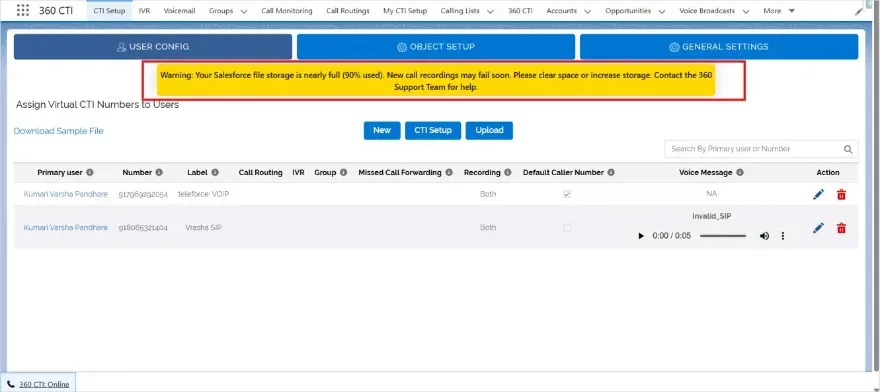
Figure: Storage warning on the CTI Setup page
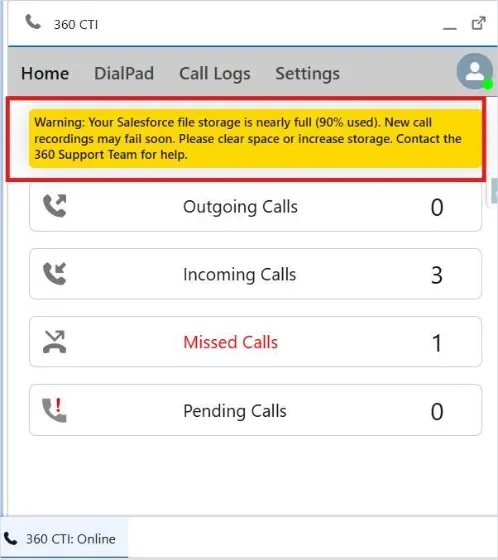
Figure: Storage warning on the CTI Softphone Home tab
UPDATED For: Admins, managers
After a call, 360 CTI can turn the recording into a written transcript and use AI to analyse it: sentiment, a Minutes of Meeting (MOM) summary, topics, action items, scores and more. Results are saved on the call log, so managers can review any conversation in seconds.

Example Alex, a sales manager, has hour-long client calls covering updates, negotiations and follow-ups. Instead of relying on memory, he opens the call log to read the transcript, sees where the client was excited or concerned, and shares the MOM with his team.
NEW Where: CTI Setup › General Settings › AI Settings
| Setting | What it does |
|---|---|
| AI Provider | OpenAI or Sarvam AI. Transcripts are generated by the provider you choose. |
| AI Model | The model to use. A default is filled in for the selected provider; you can type a different supported model. |
| Transcript Key | Your AI provider's API key. It is stored encrypted, and a message confirms when the key is valid. |
Important: You need an account and API key with the AI provider you choose.
After upgrading, click the CTI Setup button in User Config once to move your existing key into General Settings.
Check the AI model name carefully. An unsupported model is not rejected on save, but transcripts will fail to generate.
Screenshot added ? see page 61.
NEW
| Setting | What it does |
|---|---|
| Post Call Transcript Mode | Automatic (default): every recorded call is transcribed. Manual: transcripts are generated only when someone clicks Sync Transcript on a call log or uses bulk generation (16.6). |
| Transcript Calls Longer Than | Minimum call length in seconds. Calls shorter than this are not transcribed. Default 0 (all calls). Example: 60 means only calls of 60 seconds or more are transcribed. |

Tip: AI transcription has a cost per call. Short calls ("Hello… not interested") rarely need a transcript. Use a minimum length, or Manual mode, to control spend.
NEW Transcript In English Language:
Summary fields such as MOM and sentiment are produced in English.
NEW Tell the AI how to evaluate your calls. Write instructions in plain language in these General Settings fields:
| Field | Controls |
|---|---|
| Call Score Instruction | How the Call Score is calculated. Example: "Give 10 points each time the agent explains a product feature; score out of 100." |
| Call Insight Instruction | What goes into the Call Insight field. |
| MOM Instruction | How the Minutes of Meeting summary is written. |
Instructions work with both OpenAI and Sarvam AI. You can also define Call Transcript Keywords with scores; these feed the Keyword Details and Call Score fields.
NEW For: Admins
For one call Open the call log and click Sync Transcript.
For many calls

Tip: Only call logs with a recording and a real conversation produce useful transcripts. Filter your list view (for example, to calls without a transcript and above a minimum duration) before generating, to avoid unnecessary AI cost.
Limitation The Call Transcript button works on list views, not on reports.
Screenshot to be added: Generate Transcript page from the Call Log list view.
| Field | Contains |
|---|---|
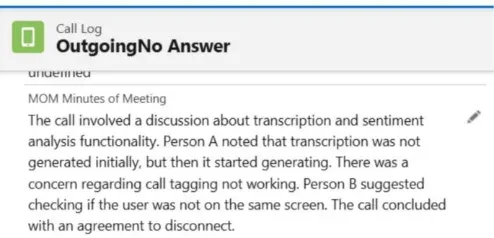
| Call Transcript Call Sentiments MOM (Minutes of Meeting) Call Insight Topics Action Items Call Score Keyword Details Talk Time Intent / Sub Intent Engagement Score Sentiment Score Weighted Score | The full conversation. Long transcripts are attached as a file on the call log. Overall sentiment: Positive, Neutral or Negative. A summary of the call. Insights based on your Call Insight Instruction. The main subjects discussed. Tasks and follow-ups mentioned in the call. Overall score based on your keywords and Call Score Instruction. Keywords from your list that were detected. Based on the customer's idle time; shows whether the call flowed smoothly. The purpose of the call, and whether the concern was addressed. How actively the customer took part. The emotional tone of the conversation. Call quality, with more weight on key factors such as resolution and satisfaction. |
Sarvam AI Integration The CTI app now integrates with Sarvam AI.

Figure: AI Settings with AI Provider set to Sarvam AI Set a Minimum Call Length for Transcription Admins can now set a minimum call length for transcription from the General Settings page using the Transcribe Calls Longer Than field. For example, if the value is set to 30 seconds, only calls longer than 30 seconds will be transcribed, while shorter calls will not be transcribed. If the field is left blank, all incoming and outgoing calls will be transcribed.

Figure: Transcribe Calls Longer Than Translate Call Transcripts to English Post-call transcripts can now be translated into English, even when the call happened in a regional language. A new picklist on the CTI General Settings page lets admins choose the language to translate from, limited to supported languages — note that turning this on increases transcription cost. It's controlled by a field called Call Transcript in English Language on the CTI General Settings page.

fig. Call Transcript in English Language Custom AI Instructions for Call Score, Call Insights & MOM Admins can now define custom AI instructions for Call Score, Call Insights, and MOM (Minutes of Meeting). These instructions allow businesses to tailor how AI analyzes call conversations, evaluates agent performance, summarizes key discussions, and highlights important action items based on their specific business requirements.
Admins can configure separate instructions for each AI-generated field, ensuring the output is relevant, consistent, and aligned with their business needs.
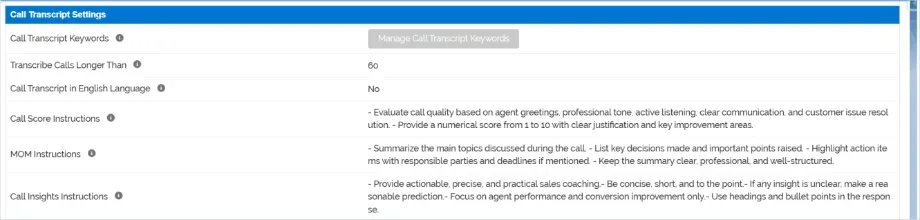
Fig. Call Score, Call Insights & MOM instruction Bulk Transcribe Call Recordings Admins can now select multiple call logs and click a button to transcribe them all at once. Requests go to the transcription service in batches of 200 records instead of one at a time. A new field stores the reason a transcript wasn't generated when that happens, and a hidden field tracks whether a transcript is actually ready before the system requests one — so calls that don't need transcribing are skipped instead of resent. This works the same way for both the India and International modules.
UPDATED For: Managers, supervisors Where: 360 CTI app › Call Monitoring tab
Call Monitoring lets authorised managers follow live calls between agents and customers, and step in when needed. It turns difficult calls into coaching moments and helps resolve complaints with evidence.
| Feature | What it does |
|---|---|
| Listen | Hear a live call silently. The agent and customer are not aware you are listening (unless agent notification is turned on — see 17.4). |
| Join | Enter the call to help the agent resolve a complex situation. |
| Call Whisper | Speak to the agent only; the customer cannot hear you. Ideal for real-time coaching. |
The tab has three sections: Live Calls, Waiting Calls and the User Status table, which shows whether each team member is Online, Away, Offline or on a call.
Group column in the User Status table NEW The User Status table now has a Group column listing every group each user belongs to, with the total number of groups in brackets — for example, "Sales, Support (2)". Click a group name to open that group. Managers can see team membership at a glance.
Screenshot added ? see page 62-A.

Note: You can monitor one call at a time. Only live calls where the customer and agent are actively talking are shown.
Clear access messages NEW If a user opens Call Monitoring without the right access, a message now explains why:
Group Names Now Visible in Call Monitoring The User Status Details section in Call Monitoring now includes a Groups column, showing the group or groups each user belongs to. The column also displays the total number of groups assigned to the user in parentheses, such as Sales Team (1). This provides a quick and clear view of each agent’s group membership directly from the Call Monitoring page.
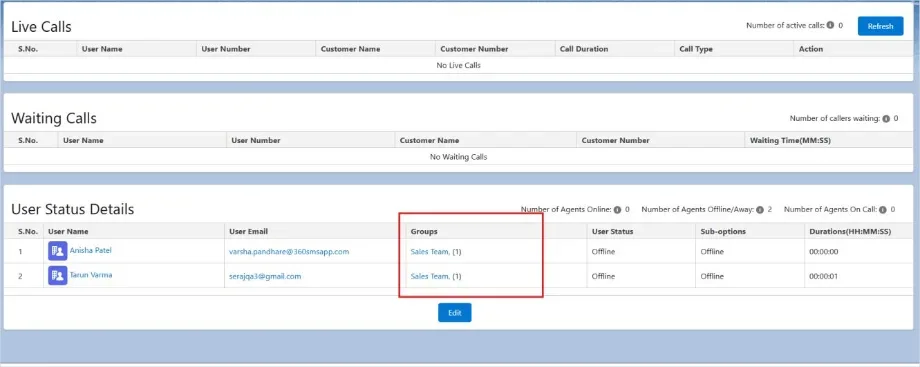
Figure: Groups column in User Status Details
NEW Community (Experience Cloud) users can now use Call Monitoring, with the same features as internal users.
Where: CTI Setup › General Settings › Call Monitoring Access Settings
| Setting | What it does |
|---|---|
| Provide Additional Access To Users | Set to Yes to override the app's default monitoring access. |
| Follow Role Hierarchy | Set to Yes to give managers access based on the role hierarchy. |
| Grant Admin Access To Users | User IDs (comma-separated) that get admin-level monitoring access. |
| Grant Admin Access To Profiles | Profile IDs (comma-separated) that get admin-level monitoring access. |
| Notify Agent When The Manager Listens To The Call | Set to Yes to tell agents when a manager is listening. (Other Settings) |
NEW For: Admins, managers Where: Call Log object
New fields on the Call Log record make it easy to report on how calls are made and where they go, and to troubleshoot issues. Add them to your call log page layout and reports.
| Field | What it contains | Example use |
|---|---|---|
| Call Source | How the call was made or received: Click to Dial, Softphone (DialPad or call logs), Power Dial, Calling List, Call Routing, Voice Broadcast, Flow, Salesforce mobile app,IVR, and so on. | Which calling feature does your team use most? |
| Call Source ID | The ID of the item behind the call, for example the Calling List, Call Routing or Voice Broadcast. | Compare results between two Calling Lists. |
| Call Destination | The name of the last group the incoming call rang (from User Config, IVR or Call Routing), whether answered or missed. | Build a flow that shares missed calls from a group among its members. |
| Key Press | Keys pressed by the customer (from Play Recording transfers and Outbound IVR Capture Response). | Report on feedback ratings or survey answers. |
Limitation Call Destination stores only the last group the call rang, even if the call passed through several groups.
Call Source Fields Combined Into One The Call_Source__c and Call_Source_Id__c Call log fields from the CTI International Package have been merged into one field, now working consistently across all providers.
New Field: Call Destination on Call Log A new Call_Destination__c field on the Call Log stores the name of the queue where a call last landed, whether it ended as a missed call, a voicemail, or an answered call. This works across the entire app.
For: Admins Where: CTI Setup › User Config
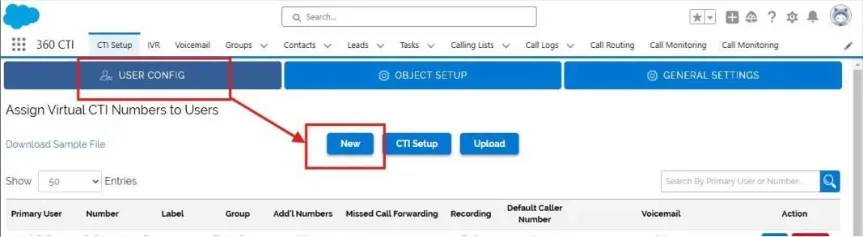
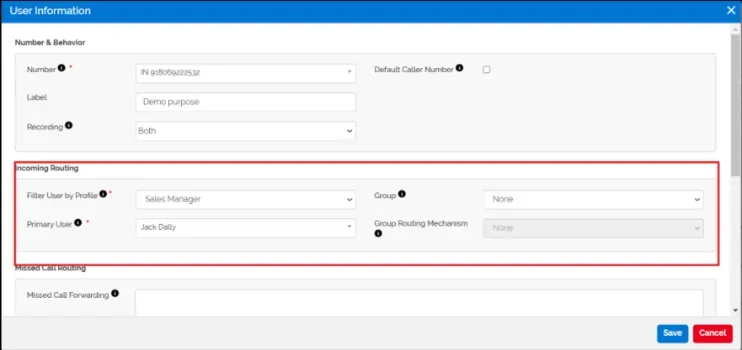

Note: Make sure the user's mobile number is correct in My CTI Setup; their calling agent is created from that number.
When a user has several CTI numbers, choose which one is used for outgoing calls by default.
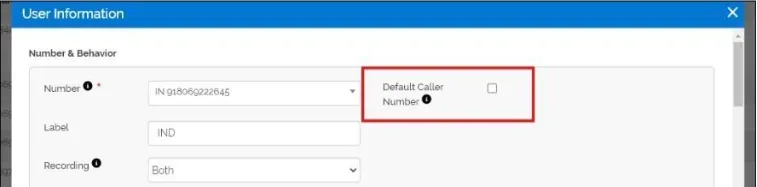
Note: Default Caller Number does not apply when Sticky Caller is used; the sticky number takes over.
In CTI Setup › User Config › Edit, enter a Label (for example, "Sales" or "Support") so users can tell their numbers apart. The label also appears on the incoming call screen.
UPDATED For: Admins
Create a group
Ne Group form
Add or remove members
Adding a member to a group

Tip: User and group picklists across the app are now searchable. The first 50 entries are shown; type a name to find anyone else. Pages also load faster in large orgs.
UPDATED For: Admins
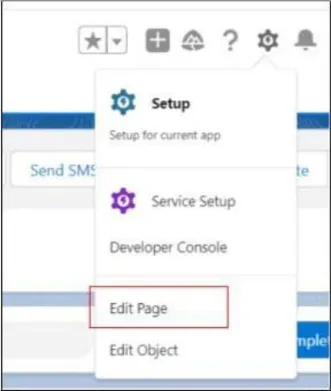
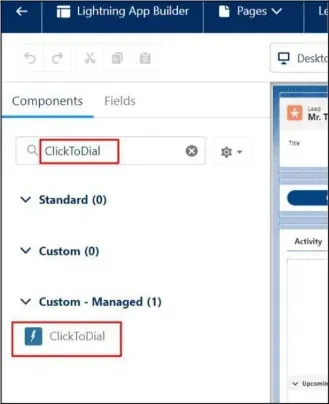
Choose which phone fields appear in the component in CTI Setup › Object Setup › Click To Dial Fields. Phone and Formula (Text/Number) fields are supported and shown in a two-column layout.
New: The component now shows a loading message until the softphone is ready, then makes the numbers clickable (see 5.1).
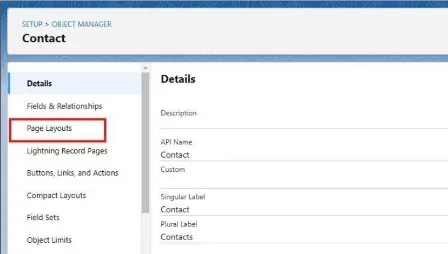
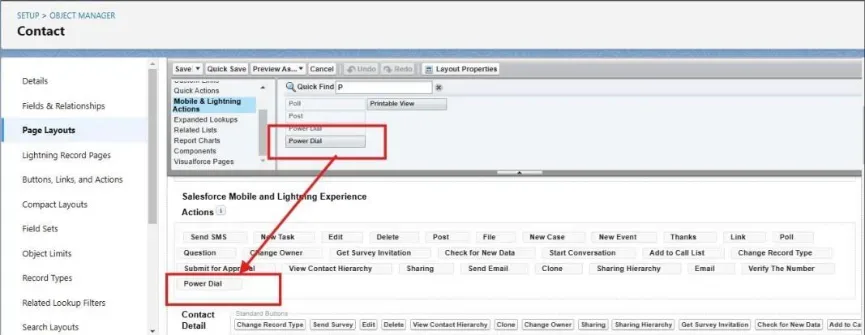
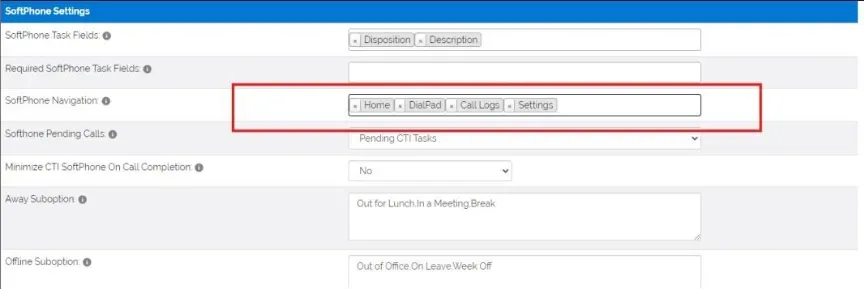
Masking hides part of a customer's phone number from agents, for example ******1234, to protect privacy.
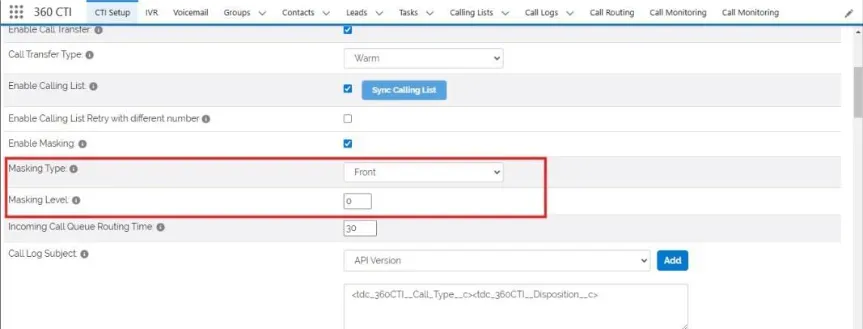
UPDATED For: Admins Where: CTI Setup › General Settings › Softphone Screen Flow Settings
Open a Salesforce screen flow inside the softphone at a chosen moment in the call, so agents can capture extra details without leaving the call screen.
| Setting | What it does |
|---|---|
| Open Screen Flow | Set to Yes to turn the feature on. |
| Flow Name | The API name of the screen flow. |
| Flow Param (UPDATED) | The flow's input variable names, separated by commas.We support Two Variable, RecordID which how call customer record id (Ex, Lead, Account, contact), and CalliD (which hold the currect call ID) |
| Open Screen Flow At | The call event that opens the flow, for example when the call is answered by the agent or customer, or when the call ends. |
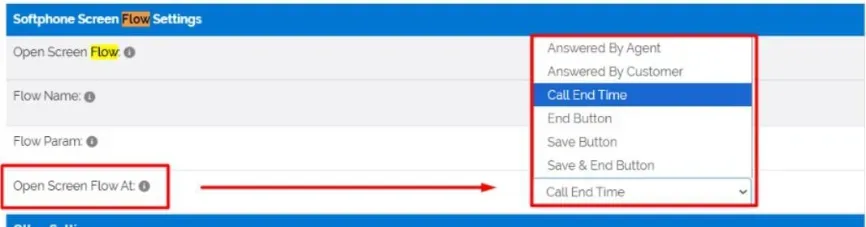
Screen Flow Popup in SF1 Mobile App Screen Flow popup functionality has been implemented in the Salesforce mobile (SF1) app.
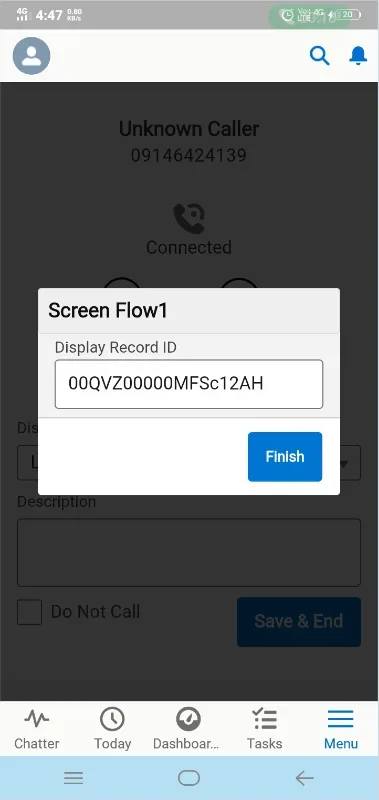
Figure: Screen Flow pop-up in the SF1 mobile app Pass Call ID to Screen Flow Pop-Ups Screen Flow pop-ups triggered by softphone events (like Call Answered or Call Ended) used to receive only one value, recordId. They can now also receive callId. Admins set this up on the General Settings page by listing the Flow variable names they want, comma-separated — for example, recordId,callId — with no hardcoded variable names needed.
The CTI Setup tab has three sub-tabs: User Config, Object Setup and General Settings. Throughout the setup pages, user and group picklists are searchable: the first 50 entries are listed and you can type to find the rest.
Assign numbers to users and set how each number behaves. Two buttons are available:
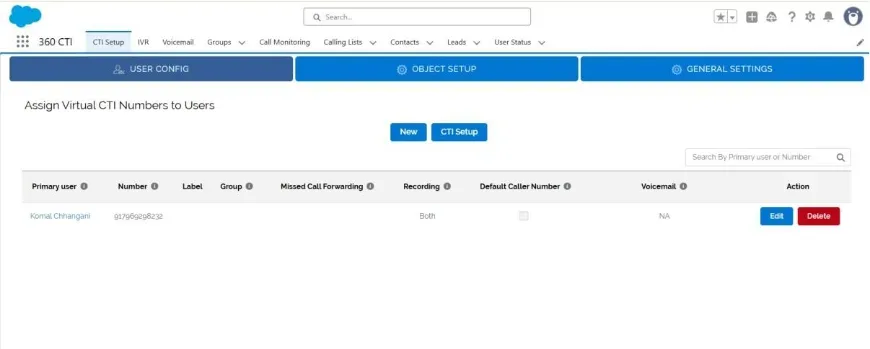
| Section / field | What it does |
|---|---|
| Number & Behaviour Number Default Caller Number Label Recording Country Incoming Routing Filter User By Profile Primary User Group / Group Routing Mechanism Missed Call Routing Missed Call Forwarding Voice Message / Voicemail (UPDATED) Out of Office | The number assigned to the user. Makes this the user's default outgoing number. Not used when Sticky Caller is defined. A name for the number. Record Incoming only, Outgoing only, or Both. The number's country. Limits the user picklist to one profile. The user the number belongs to. If a group is used, the primary user must be in it. Share calls among a group (see 10.2). Up to two numbers, comma-separated. Play a message, or let the caller leave a voicemail (see 10.1). |
| Out of Office fields Other Settings SF1 Notification Call Direction (UPDATED) Auto Save Disposition Select Voice Message For Disallowed Record Select Voice Message For Call Waiting | See 10.1. Sends push notifications to the Salesforce mobile app for incoming calls. Incoming, Outgoing, Both, or Missed Call Number (see 10.6). Seconds after which the call and disposition are saved automatically if not saved manually; the next call then starts. Message for incoming calls that are not allowed. Message played while the caller waits; your own voice or a robotic male/female voice. |
| Field | What it does |
|---|---|
| Object Name | The object to configure (for example, Lead or Contact). |
| Priority | Decides which object is matched first when the same number exists in more than one object. |
| Incoming Call Fields | Up to five fields shown on the incoming call screen, in a single column. |
| Click To Dial Fields | Phone and Formula (Text/Number) fields shown in the Click to Dial Component, in two columns. |
| Default PowerDial Fields | The phone field Power Dial calls. |
| Default SF1 Calling Fields | Fields the Salesforce mobile "Call" button dials directly, skipping the dialer screen. Not recommended if you call several phone fields. |
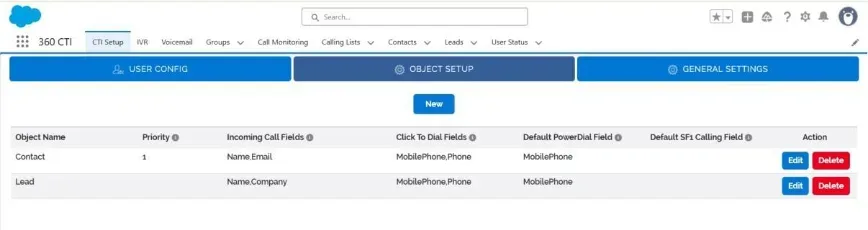
All app-wide settings. Click Edit to change them and Save when done.
| Setting | What it does |
|---|---|
| Call Settings | |
| Site URL | The site URL used for outgoing calls. |
| CTI App Owner | The owner of the app. |
| Enable Call Conference | Allows conference calls during incoming and outgoing calls. |
| Enable Call Transfer / Call Transfer Type | Turns on call transfer; Warm or Cold (see 7.1). |
| Enable Calling List / Retry With Different Number / Auto Resume | Calling List options (see 9.2). |
| Enable Sticky Agent As Owner / Disable Last Communicator / Enable Last Communicator As Owner | Ownership options, one at a time (see 10.3). |
| Enable Masking / Masking Type / Masking Level | Hide part of customer numbers (see 19.8). |
| Open Customer Record In | Open the caller's record in a new tab or in the background on incoming calls. |
| Call Log Subject | The format of call log subjects. |
| Unknown Call Settings | |
| Link Unknown Call | Create records for unknown numbers (see 6.5). |
| Missed Call Settings | |
| Missed Call Notification | Email notifications for missed calls. |
| Send Missed Call Notification | Main User, or Main User + All Group Users. |
| Auto Remove Missed Call On Callback (NEW) | Clear missed calls from the softphone after a connected callback (see 6.6). Default Off. |
| Softphone Settings | |
| Softphone Pending Calls | Pending CTI Tasks or Pending Scheduled Calls (see 5.6). |
| Minimize CTI Softphone On Call Completion | Minimise the softphone after each call. |
| Display Related Records | Which record opens when a call log is clicked in the softphone. |
| Away Suboption / Offline Suboption | Reasons for Away and Offline, comma-separated. |
| Softphone Task Fields / Manage Profile Wise Setting | Fields and dispositions on the softphone (see 8.1). |
| Softphone Dashboard Settings | |
| Outgoing / Incoming / Missed / Pending Calls History View | List views used for each section of the softphone Home tab. |
| Sync Button | Refreshes the softphone call history sections. |
| Fields For View All Page | Up to 15 fields on the softphone View All page, in the order selected. |
| Call Monitoring Access Settings | |
| Access settings | See 17.4. |
| Softphone Screen Flow Settings | |
| Open Screen Flow / Flow Name / Flow Param / Open Screen Flow At | See 19.9. |
| AI and Call Transcript Settings (NEW) | |
| AI Provider / AI Model / Transcript Key | See 16.2. |
| Post Call Transcript Mode / Transcript Calls Longer Than | See 16.3. |
| Transcript In English Language | See 16.4. |
| Call Score / Call Insight / MOM Instruction | See 16.5. |
| Other Settings | |
| Disable DNC | Hide the Do Not Call checkbox on the softphone. |
| Disable Create Lead Button | Hide the Create Lead button for unknown incoming calls. |
| Play Voice Message For Unknown Calls | Play a message to all unknown callers (message set in User Config). |
| Skip Lead Criteria | A SOQL WHERE clause for Lead records to skip when matching unknown incoming calls. |
| Disable All Webhooks | Stop all call-related webhooks from the provider. |
| Dialplan Id / Recording Ids | Provider technical settings. |
| Blacklisted Numbers | Numbers to block (see 10.7). |
| Call Transcript Keywords | Keywords and scores used for Call Score (see 16.5). |
| Notify Agent When The Manager Listens To The Call | See 17.4. |
| Users With Recording Download Access (UPDATED) | All, None, Users, Record Owner or Profile (see 15.2). |
| Question or problem | Answer |
|---|---|
| I clicked a number in Click to Dial and nothing happened. | The softphone was still loading. Wait until the loading message disappears and the numbers become clickable, then click once. |
| The incoming pop-up appears on every Salesforce tab (VoIP). | This is the provider's default. To ring on a single tab, ask 360 CTI Support to request it from the provider. |
| I marked myself Offline during Power Dial and now cannot call. | Change your status back to Online; outgoing calls need Online status. |
| My sticky agent did not ring. | Sticky agents are skipped when they are not Online, have no access to the number, or have no licence. Sticky Agent works for incoming calls only. |
| A missed call did not disappear after I called back. | Check that Auto Remove Missed Call On Callback is on, the call connected, and you called the same number that called you. |
| A voicemail drop was created but there is no message. | The caller hung up after the beep without speaking. This still counts as a voicemail drop. Hanging up before the beep creates a missed call task instead. |
| The # key does not work in my IVR. | The # key is not supported because of a provider limitation. Use 0–9 or *. |
| Callers hear a normal ringtone while we route them. | The ringback tone is controlled by the provider. Add a Voice Message as the first Call Routing step to greet callers. |
| A recording says it is not available from the provider. | The provider did not supply a recording for that call. Contact 360 CTI Support if this happens often. |
| A recording says the URL is invalid or not configured. | Contact 360 CTI Support to update the recording configuration. |
| New recordings are missing, or User Config/IVR changes will not save. | Check for the file storage warning. Free up Salesforce file storage or buy more. |
| A call has no transcript. | Check: transcript mode (Manual needs Sync Transcript); the call is longer than the minimum length; the call has a recording; the AI key is valid and the AI model name is correct. |
| I cannot see live calls in Call Monitoring. | You need a CTI number and monitoring access. The message on screen tells you which is missing. |
| The Manage Disposition table shows a warning. | Turn on Lightning Web Security in Setup › Session Settings. |
| An agent stopped receiving calls. | Check their mobile number in My CTI Setup. If it was removed, their agent was deleted; add the number back. |
For help, feature requests or to enable options marked "Enabled on request", contact the 360 CTI Support team:
Email: care@360smsapp.com Phone: +91 806 902 7849 Website: 360smsapp.com/computer-telephony-integration
Need help setting this up in your Salesforce org? Talk to a 360 CTI expert and get it working for your team.
Talk to an ExpertThe full 360 CTI user guide for international numbers: outbound and inbound calls, CTI Setup, Power Dial, IVR, call routing and AI features.
Read Guide →Set up 360 CTI AI features: the AI Voice Bot, live call transcription, auto call tagging, sentiment analysis and live call coaching.
Read Guide →Where to find call transcripts in Salesforce and what each AI field on the Call Log means, from sentiment to action items and call scores.
Read Guide →