
← All Guides

360 CTI AI Features Configuration Guide

Set up 360 CTI AI features: the AI Voice Bot, live call transcription, auto call tagging, sentiment analysis and live call coaching.

Last updated: 9 min readDownload PDF
Table of Contents

Overview

360 CTI AI Features are designed to automate call handling, enhance agent productivity, and improve customer experience using AI-driven voice, transcription, and real-time assistance capabilities.

Prerequisites

Before using AI features, ensure:

  • Live Transcription is enabled in the CTI settings
  • Stable internet connection
  • AI integration setup (e.g., OpenAI / Agentforce)
  • OpenAI Key is maintained in CTI General Settings (required for the Live Transcript on the Softphone)
  • Required licenses (especially for advanced features like Call Coaching)

1. AI Voice Bot for Outbound & Inbound Calling

Overview

The AI Voice Bot (Voice Agent) automates customer calls, handles queries, and performs Salesforce actions such as creating or updating records.

Key Use Cases

  • Handle repetitive support queries (case status, FAQs)
  • Create/update Salesforce records via voice
  • Route calls to human agents when required
  • Run outbound campaigns (voice broadcasts)
  • Provide 24/7 support

Capabilities

  • Reads, creates, and updates Salesforce records
  • Transfers calls to human agents when needed
  • Can send follow-ups via SMS/email (via integrations)
  • Works across standard and custom objects
  • Supports Salesforce Flow execution as part of Prompt functions
  • Supports Merge Fields in prompts to personalize what is played to the customer

How It Works

A. Inbound Usage

  1. Configure Voice Agent in:
  • Call Routing
  • IVR (e.g., "Press 1 for AI Agent")
  1. Customer calls:
  • Bot identifies intent
  • Fetches data (e.g., case details)
  • Responds in real time
  1. Optional:
  • Transfers to human agent if needed B. Outbound Usage
  1. Use Voice Agent in:
  • Voice Broadcasts
  • Salesforce Flows
  1. Bot:
  • Calls customers
  • Delivers message or pitch
  • Qualifies leads / books demos C. Example Scenarios
  • Customer asks for case status → bot reads from Salesforce
  • Customer requests new issue → bot creates a case
  • Customer frustrated → bot transfers to human

Setup (High-Level)

  1. Go to Voice Agent Setup
  2. Create a new agent
  3. Define:
  • Prompt (AI instructions)
  • Functions (Create/Read/Update actions, or call a Flow)
  1. Configure in:
  • Call Routing / IVR / Flow Prompt generation can be automated using AI prompt suggestion.

Flow Support in Prompt Setup In the Prompt Setup screen, under the Create Function pop-up, the Action field includes the option to call a Flow. Once a flow is selected, you can pass all input and output variables in the parameter table. The result of the flow is also accessible to the Prompt.

Example: If a flow creates a Case record, the Case Number is passed back to the Prompt so it can be communicated to the customer.

Note: To select a flow, first choose the Flow option in the picklist, and then open the dependent picklist to select the desired flow.

Flow Parameter Configuration To configure parameters, create resources in Flow. In the Flow button settings, mark each resource as Available for input or Available for output.

  • For Input: Copy the created resource and paste it into the Parameter field.
  • For Output: Values are updated automatically; no need to define them in the Parameter field.

This simplifies parameter handling and ensures smoother integration with Flow actions.

Merge Field Support in Voice Agent Prompts Voice Agent Prompt Setup supports Merge Fields. Admins can define merge fields, and the values of these fields are played to the customer during the call.

Syntax: Merge fields use the format {!ObjectName.FieldAPIName} — for example, {!

Lead.Name} or {!Case.Status}, where Lead/Case is the Object Name and Name/Status is the Field API Name. If the object contains the field with a value, the value is played to the customer.

If the field does not exist or the value is blank, the field is skipped.
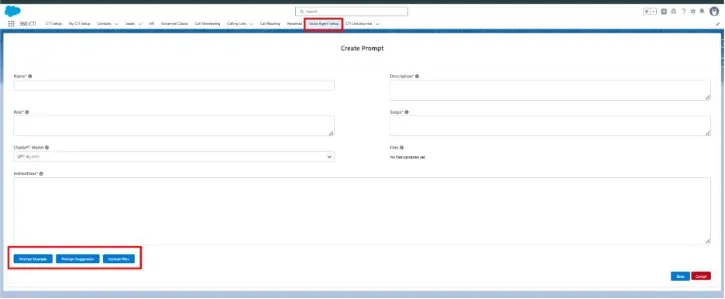
Setup (High-Level) in 360 CTI for Salesforce

2. Live Call Transcription

Overview

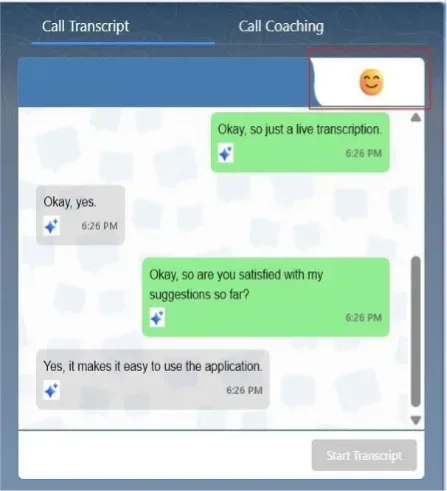
Displays real-time text transcription during active calls for better visibility and accuracy. The Live Transcript is available directly inside the CTI Softphone.
Why It Matters

  • Prevents loss of important details
  • Helps agents track fast conversations or accents
  • Enables managers to monitor calls easily

Key Capabilities

  • Real-time transcription (speaker-separated)
  • ~90–95% accuracy (continuously improving)
  • Stored for future reference
  • Manager-specific transcript language during Call Monitoring – Listen

How It Works

  1. Start a call
  2. Transcription appears live in the CTI Softphone panel
  3. Left side = Customer
  4. Right side = Agent

Use Cases

  • Long or complex calls
  • Compliance monitoring
  • Training and QA
Use Cases in 360 CTI for Salesforce

OpenAI Key Requirement The Live Transcript component is shown on the Softphone only when a value is provided in the OpenAI Key field on CTI General Settings. If this field is left blank, the Live Transcript component is not displayed on the CTI Softphone.
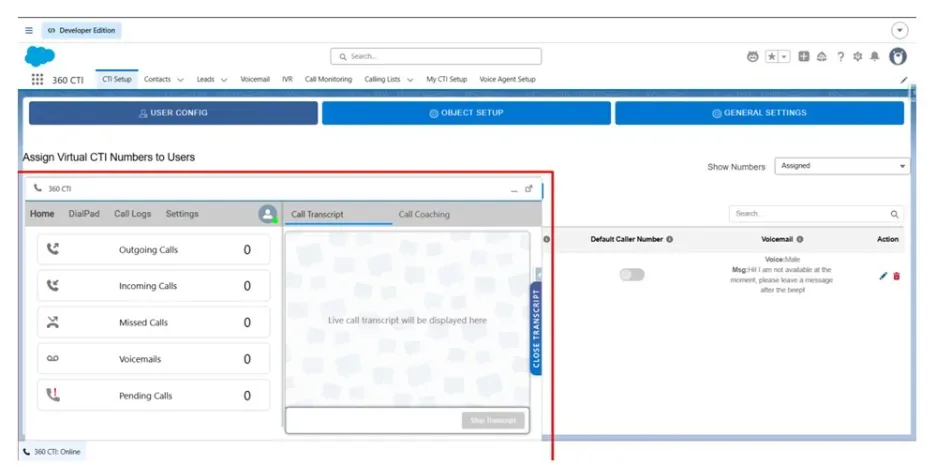
Use Cases in 360 CTI for Salesforce

Multi-Language Transcripts in Call Monitoring On the My CTI Setup page, the Transcript Preferred Language field allows each manager to define their preferred language. When a manager listens to a call, the live transcript is displayed in the language defined in their My CTI Setup, so each manager can view transcripts in the language they are most comfortable with.

Note: This applies only to Call Monitoring – Listen. It does not apply to normal calls or to other Call Monitoring modes.
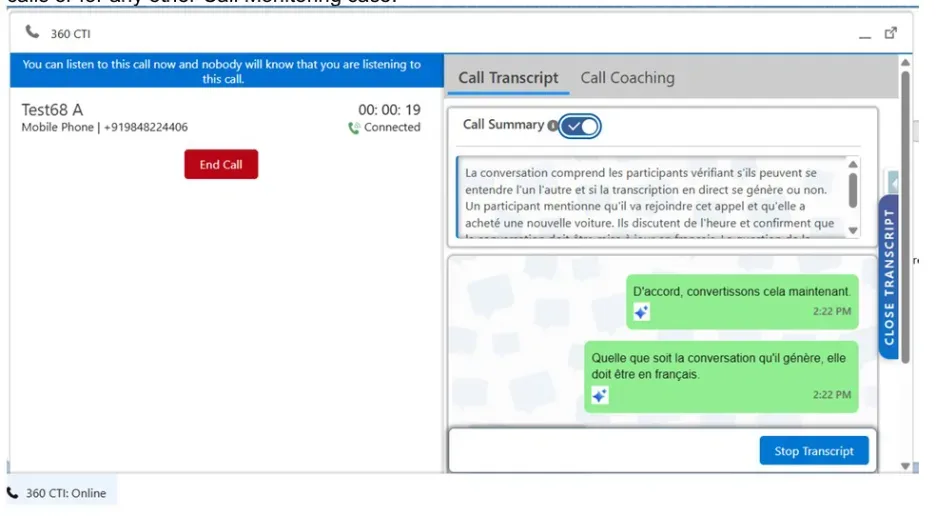
Use Cases in 360 CTI for Salesforce

3. Auto Disposition & Call Summary (Auto Call Tagging)

Overview

Automatically fills call disposition fields and generates summaries after calls.

Problem Solved

Manual logging is:

  • Time-consuming
  • Repetitive
  • Often inconsistent

Key Capabilities

  • Auto-generated call summaries
  • Auto-tagging dispositions (e.g., Interested, Callback)
  • Works across all softphone fields
  • Profile-wise control over which Softphone Task fields are auto-filled by AI

Modes of Operation

  1. Automatic Mode
  • Fields auto-filled after every call
  1. Manual Mode
  • "Ask AI" button appears
  • Agent triggers AI when needed
  1. Disabled
  • Feature turned off

How to Configure

  1. Go to CTI Settings → Auto Call Tagging
  2. Select:
  • Yes (Auto)
  • No (Manual)
  • None (Disabled)

AI Auto-Fill for Softphone Task Fields On the CTI General Settings page, the AI Autofill Softphone Task Fields field (under Manage Softphone Disposition) lets the admin define which Softphone Task fields are auto-filled using AI.

This setting is controlled profile-wise, so different auto-fill behavior can be defined for different user profiles.
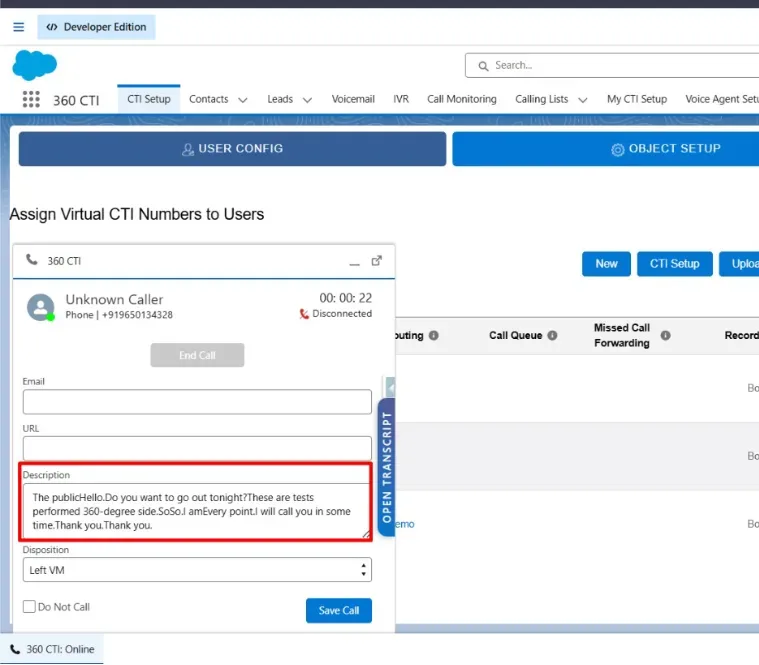
How to Configure in 360 CTI for Salesforce

4. Sentiment Analysis

Overview

Analyzes customer emotions during calls in real time.

Key Capabilities

  • Real-time sentiment detection
  • Visual indicators (emoji-based feedback)
  • Tracks emotion changes throughout call

Use Cases

  • Identify frustrated customers early
  • Improve agent responses
  • Enhance customer experience

5. Live Call Coaching

Overview

Provides real-time AI assistance to agents during calls.

Problem Solved

Agents may:

  • Not know answers
  • Struggle with objections
  • Miss product details

Key Capabilities

  • Real-time suggestions during calls
  • Answers pulled from:
  • Knowledge base
  • Uploaded documents
  • Works via Agentforce integration
  • Default Agentforce Agent can be pre-selected for the Call Coaching tab
  • Off-Topic filtering keeps small talk out of coaching insights

How It Works

  1. During call → Open Call Coaching tab
  2. Select AI Agent (the default agent appears pre-selected if configured)
  3. Ask question or trigger suggestion
  4. AI fetches answer from:
  • Knowledge base
  • Data library

Data Sources

  • Salesforce Knowledge Base
  • Uploaded documents (PDFs, guides)

Example Scenarios

  • Customer asks about pricing → AI provides answer
  • Customer mentions competitor → AI suggests response
  • Agent unsure → AI guides next step Default Agentforce Agent for Call Coaching On the CTI General Settings page, the Default Voice Agent for Call Coaching field lets the admin select a default Agentforce Agent. The selected agent is shown by default on the Softphone Call Coaching tab so agents do not have to pick one for every call.

Off-Topic Filtering Admins can define Off-Topic instructions to exclude casual or irrelevant phrases (e.g., Hi, Hello, Thank You, How are you) from what is sent to Agentforce. This ensures that only meaningful, coaching-relevant insights are displayed in the Call Coaching tab.

6. Post-Call Transcription

Overview

Provides a complete transcript and analytics view after a call ends, enabling deeper review, scoring, and coaching.

Key Capabilities

  • Full transcript after call ends
  • Sentiment analysis
  • Call scoring metrics
  • AI-generated Call Insights for sales coaching
  • Admin-configurable scoring and insight instructions
  • Per-user average Call Score, refreshed daily Call Insights in Post-Call Transcript The Post-Call Transcript includes a Call Insights field where the AI populates Coaching Insights to advise the user on how to improve their sales calls.

On the CTI General Settings page, an instructions field controls how the AI shares its insights and which parameters to use. Default instructions are populated during package install and upgrade and can be overridden as needed. If the admin clears this field, Call Insights will not be populated.

Call Score – Admin Defined Instructions On the CTI General Settings page, the Call Score Instructions field allows admins to define their own instructions, based on which the AI calculates the Call Score in the Post-Call Transcript. If this field is left blank, scoring works as it did previously.

By default, sample instructions are populated when the package is installed or upgraded.

Admins can override these as required, and the Call Score is then calculated based on the instructions provided in this field.

Call Score on My CTI Setup & Reports On the My CTI Setup page, the Call Score for each user is stored. This represents the user's average Call Score and is refreshed daily by a scheduled job running at 12:00 AM.

An Overall Call Score By User report is available in the Reports tab to display the overall Call Score per user.

Note: For a user to appear in the Reports tab, they must open their My CTI Setup page, click Edit, and then click Save. This applies only when Post-Call Transcript is enabled.
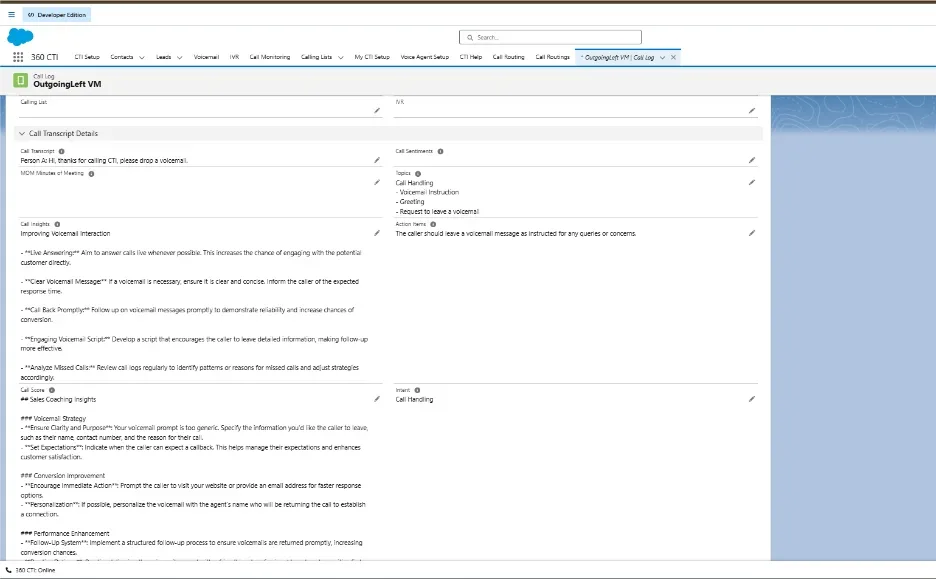
Key Capabilities in 360 CTI for Salesforce

Post Call Insights Report The Reports tab includes a Post Call Insights Report that provides the following details:

  • Call Disposition (per call-wise)
  • Call Keywords
  • Call Score
  • Engagement Score
  • Weighted Score
  • Sentiment Score
  • Intent
  • Sub Intent
  • Talk Time %
  • Action Items

Best Practices

For Voice Bot

  • Design clear call flows
  • Use strong prompts for better responses
  • Define fallback to human agent
  • Use Merge Fields to personalize what the bot plays to the customer
  • Use Flow actions to perform record operations and pass results back into the prompt

For Call Coaching

  • Maintain an updated knowledge base
  • Upload relevant documents
  • Set a Default Agentforce Agent so it is pre-selected on the Softphone
  • Define Off-Topic instructions to filter out small talk and improve insight quality

For Transcription

  • Ensure good audio quality
  • Use stable internet
  • Maintain a valid OpenAI Key in CTI General Settings
  • Set a Transcript Preferred Language on My CTI Setup for managers using Call Monitoring – Listen

For Post-Call Insights & Scoring

  • Review and customize Call Score Instructions to align with your team's KPIs
  • Customize Call Insights Instructions to focus AI feedback on what matters most
  • Have each user open My CTI Setup, click Edit, and Save so they appear in the Overall Call Score By User report

Business Impact

These AI features help:

  • Reduce agent workload (automation)
  • Improve response time
  • Increase call handling efficiency
  • Enhance customer satisfaction
  • Enable scalable operations

Contact Our Expert

Need help setting this up in your Salesforce org? Talk to a 360 CTI expert and get it working for your team.

Talk to an Expert

More Guides

Live Chat