
Guide
360 CTI User Guide for India
Everything agents and admins need to use 360 CTI in India: calling from Salesforce, routing, IVR, voicemail, recordings, AI transcripts and setup.
Read Guide →Automatically create a Lead or Contact in Salesforce when a call comes from, or goes to, a number that isn't in your org yet.
Overview Steps to setup the Unknown Call
The "Link Unknown Call" functionality within the CTI application serves to create a lead or contact entry in instances of incoming or outgoing calls involving unidentified or unknown numbers. This feature autonomously generates a new lead or contact entry utilizing the respective number. In scenarios where the number lacks an association with an existing lead or contact record, the system generates a fresh lead or contact entry for that specific number. This efficient process guarantees the capture and organisation of potential leads or contacts, thereby enriching the comprehensive management of customer relationships.
Functionality- If we get an incoming call from the unknown number, in that case our record will automatically be created as per the selection of the respective object ("Lead" and "Account & Contact.") with fields.
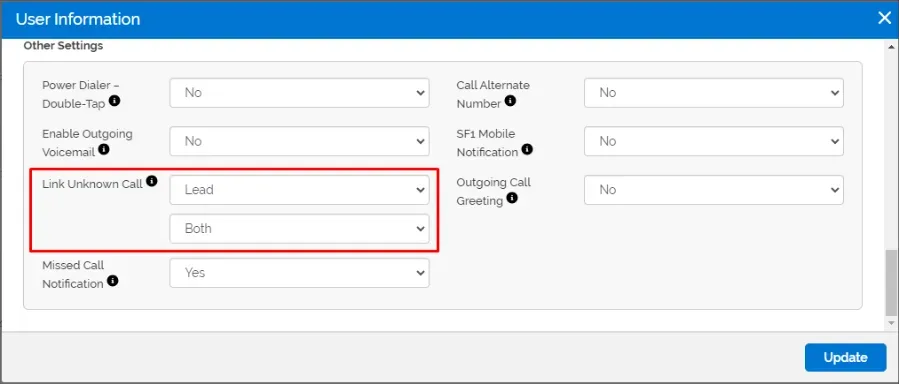
We have two choices: "Lead" and "Account & Contact." If we choose "Lead," we get three options: "Both," "Incoming," and "Outgoing." For "Account & Contact," we also have three options: "Both," "Incoming," and "Outgoing." If we pick "Account & Contact," it means a lead won't be created. Only one thing can be created at a time. The main purpose of this is that whenever a call comes from an unknown number, this function is activated.
Let's say you have a person in charge (Lead), and in the settings for unknown calls, the lead option is chosen for both incoming and outgoing calls. Whichever category you pick for the lead, it will automatically be saved in the chosen respective fields. This happens automatically.
This feature currently only support in Lead, Contact and Accounts
Users can setup the Link Unknown call in General Settings and In User Config.
To setup the Link unknown Calls fields in CTI General Settings , follow the below steps:
Navigate to the CTI Setup Tab >> Go to the General Settings >> Click to Edit Button >> Search for Link Unknown Call under Unknown call settings >> Choose the Respective Object and Type (“Both”, “Incoming” and “Outgoing”) >> Set the fields by providing the values” >> Click on “Save” button
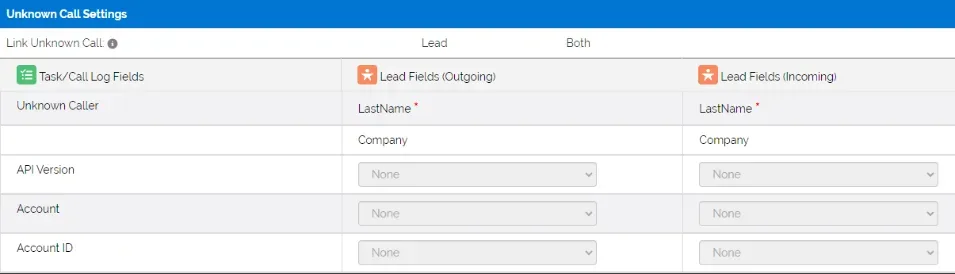
Below is the description of the details of the settings related to Task/Call Log Fields, Object Field (Outgoing), and Object Field (Incoming):
Need help setting this up in your Salesforce org? Talk to a 360 CTI expert and get it working for your team.
Talk to an ExpertEverything agents and admins need to use 360 CTI in India: calling from Salesforce, routing, IVR, voicemail, recordings, AI transcripts and setup.
Read Guide →The full 360 CTI user guide for international numbers: outbound and inbound calls, CTI Setup, Power Dial, IVR, call routing and AI features.
Read Guide →Set up 360 CTI AI features: the AI Voice Bot, live call transcription, auto call tagging, sentiment analysis and live call coaching.
Read Guide →