Guide
360 CTI User Guide for India
Everything agents and admins need to use 360 CTI in India: calling from Salesforce, routing, IVR, voicemail, recordings, AI transcripts and setup.
Read Guide →Plan calls for a set date and time in 360 CTI, the fields scheduled calls need, and how to create them automatically with Salesforce Flows.
A Scheduled Call is a feature in 360 CTI that allows users to plan and set up calls for a specific date and time in advance.
Note:
Use Case- A scheduled call is used when a customer is called, and they say they are not currently available but provide a specific time when they can be called. In such cases, we use the scheduled call feature.
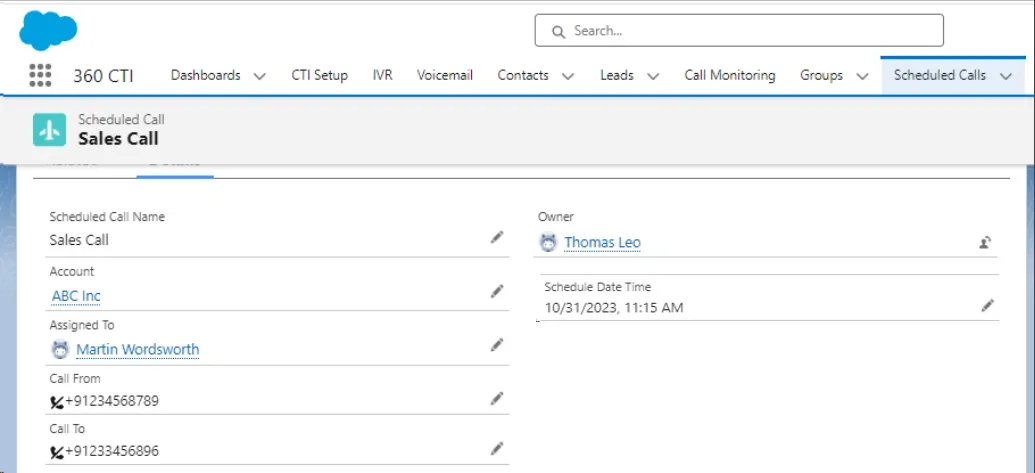
When User on call:
During a call, if a scheduled call is set for 5:10 minutes, and the user is busy with another call at that exact time, the scheduled call will be paused until the user's current call is completed. Once the current call is finished, the scheduled call will be initiated for the user 5 minutes later.
When Agent missed the call:
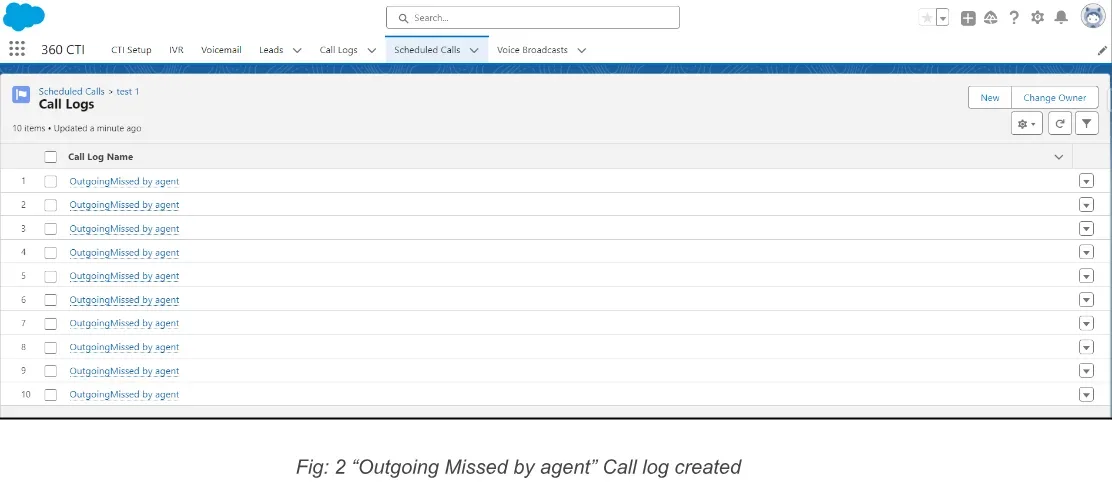
If a scheduled call is initiated, and the agent misses the call, a call log will be created with the name 'Outgoing Missed by Agent.' This signifies that the agent either declined the call or didn't answer it. In this case, the scheduled call feature will continue to attempt initiation every 5 minutes until the agent picks up the call.
For example, if the scheduled call is initiated 5 times, and the agent doesn't pick up the call each time, the scheduled call will stop after 5 attempts. This is customizable, and the client will need to contact our support team to make the necessary adjustments.
Salesforce Flows provide a code-free approach for effectively managing the triggering of Outbound Calls and handling Incoming Calls based on Keywords or other criteria. It offers the flexibility to trigger actions on any object within the Salesforce platform.
Lead/Contact: These are commonly used scenarios where Outbound Calls are triggered when leads/Contact are created or when specific fields undergo changes.
Custom Objects: Similar to Lead/Contact cases, 360 CTI supports triggered calls from any custom object.
Call Logs: It is used to see records or entries that capture important information about phone calls made or received through the integrated telephony system. These logs provide a detailed history of call activities and can be used for various purposes, such as tracking communication, analyzing call metrics, or facilitating customer service.
To trigger a call, you only need to configure a few straightforward settings:
For immediate action, set "Create a Record" to "Scheduled Call" and then specific the following parameters either through Flow:
To Create the Flow follow the below steps:
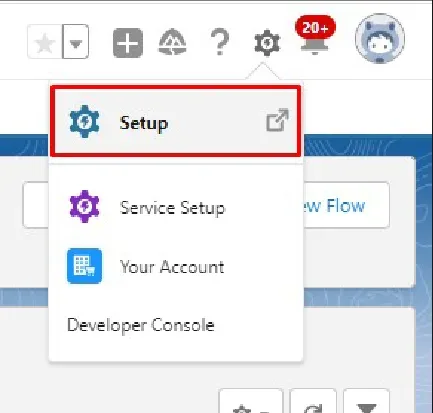
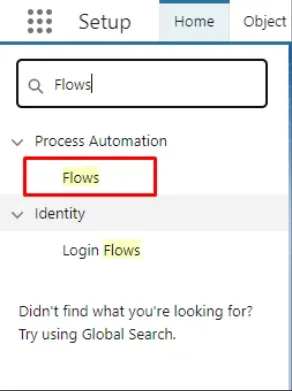
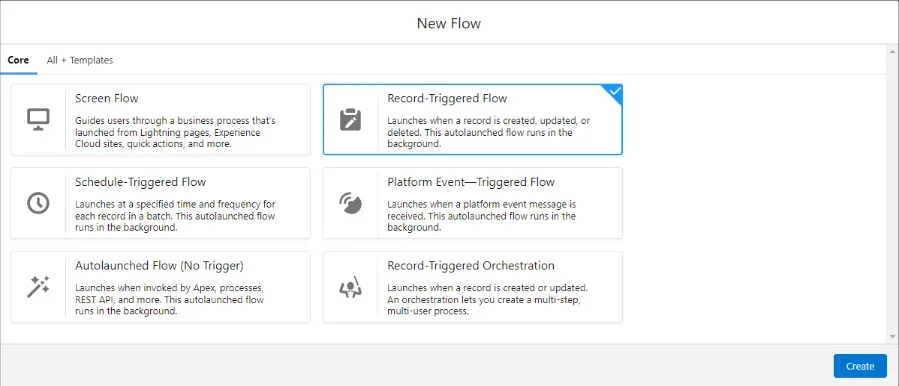
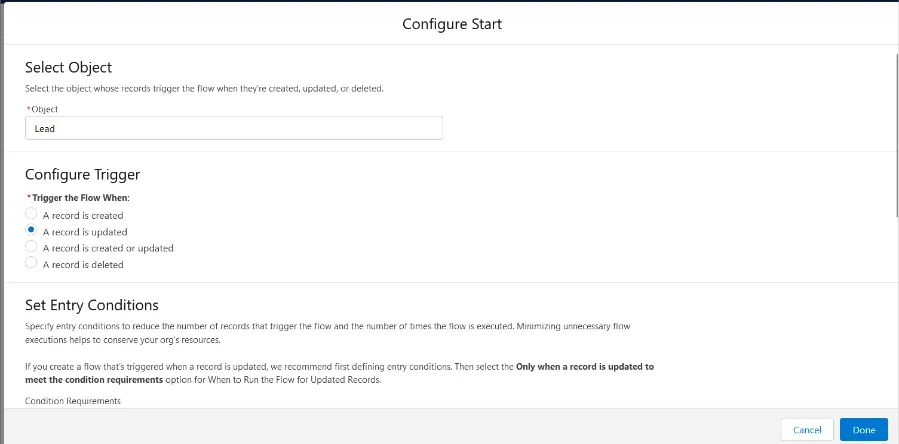
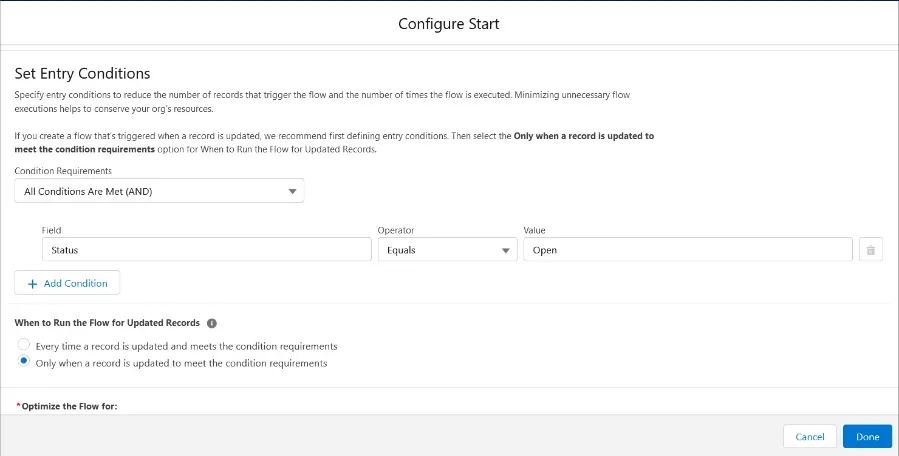
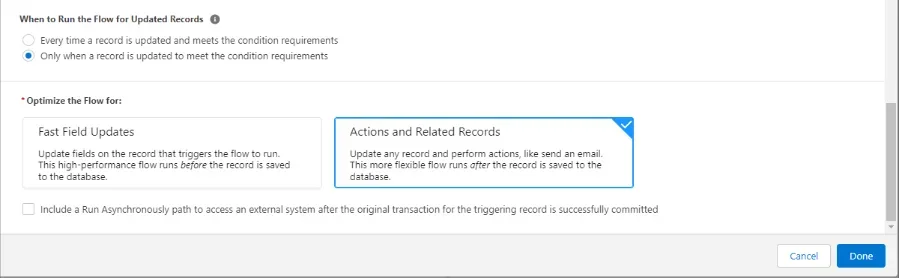
Go to Setup>> Search for “Flows” on Quick Action>> Click on “New Flow” >> Choose the Flow Type>> And here you go, you can create the flow now as per the requirement
Go to Flow Builder and click on New Resource > Select Formula as Resource Type > Write API Name as Schedule Call or as per your preference
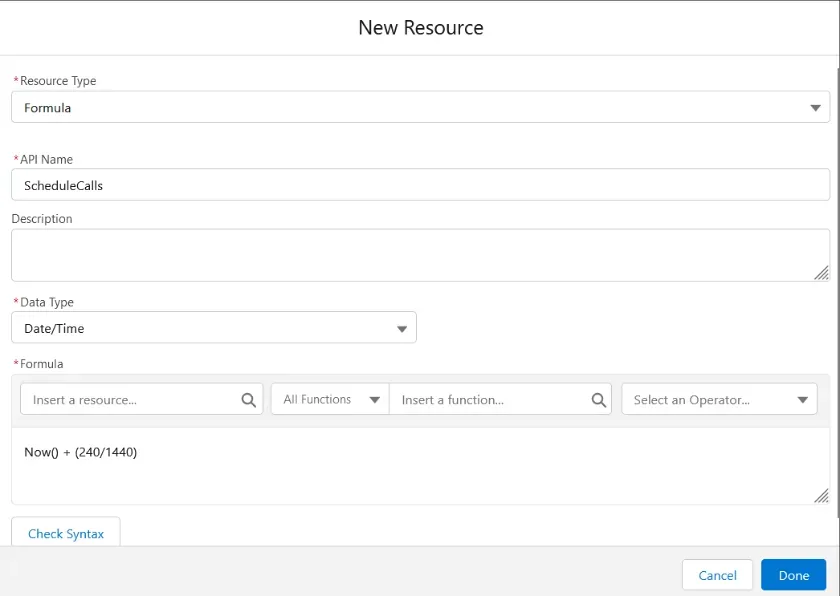
To schedule the call at different times, you need to enter distinct formulas for each desired time, For Instance:
You can modify the time or date of making call in the similar pattern as the examples given above.
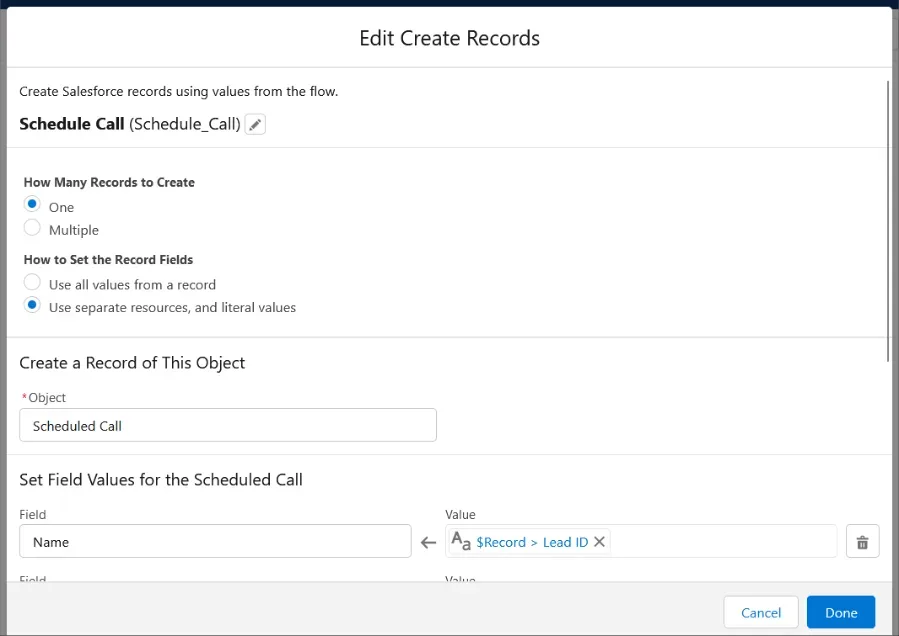
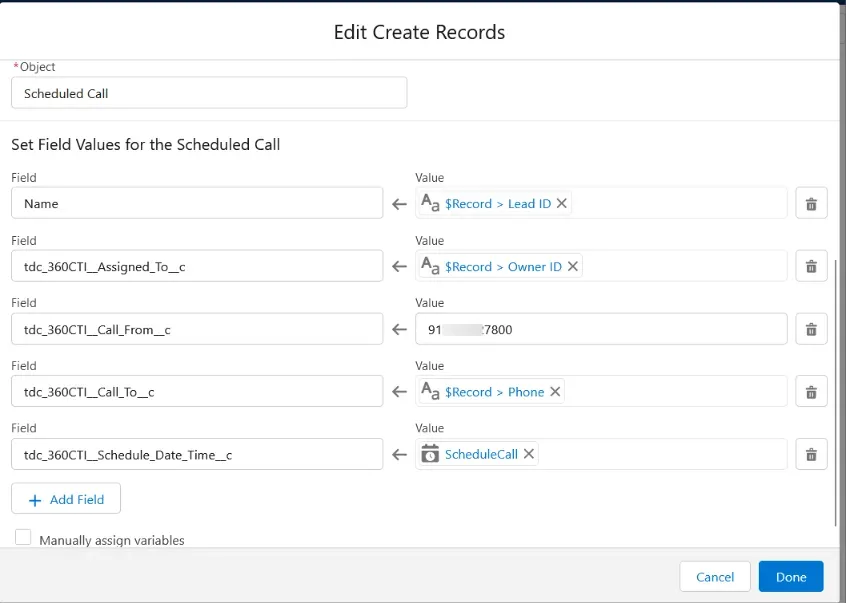
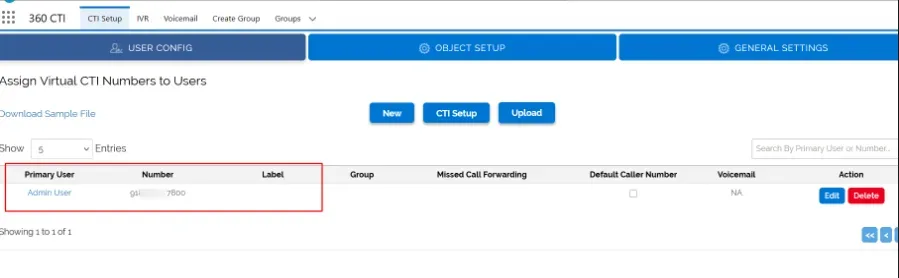
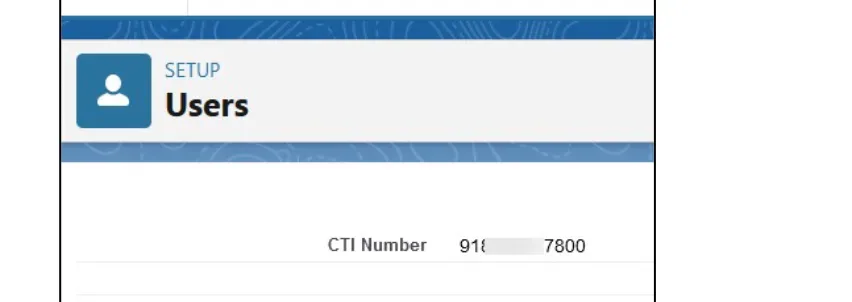
Although we have hardcoded the phone number for incoming calls, it is specifically assigned to the admin. However, in situations where users within an org have different record owners, we prefer calls to be made using the CTI number assigned to the respective record owner, rather than the hardcoded number. This ensures that each user utilizes their designated CTI number. To achieve this, we will navigate to the user record and follow the specified steps.
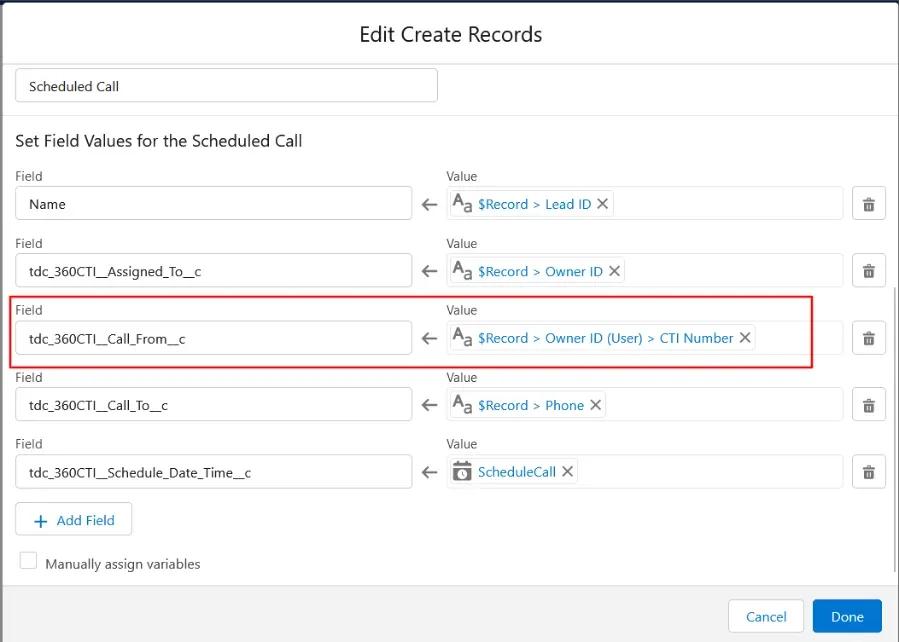
If the user specifically wishes to make calls using the CTI number of the Lead Owner, please follow the provided instructions:
Need help setting this up in your Salesforce org? Talk to a 360 CTI expert and get it working for your team.
Talk to an ExpertEverything agents and admins need to use 360 CTI in India: calling from Salesforce, routing, IVR, voicemail, recordings, AI transcripts and setup.
Read Guide →The full 360 CTI user guide for international numbers: outbound and inbound calls, CTI Setup, Power Dial, IVR, call routing and AI features.
Read Guide →Set up 360 CTI AI features: the AI Voice Bot, live call transcription, auto call tagging, sentiment analysis and live call coaching.
Read Guide →